As a vendor, it's highly recommended you complete this quality assurance guide as a way to catch and fix the content errors you might make early-on when first starting out with item creation, and selling orders.
Follow these steps for each of the first 10 orders you receive, once your Quipt store goes live:
Finding the Quipt SKU # for an order
1. Login to your Quipt portal, and open the "Orders" drawer
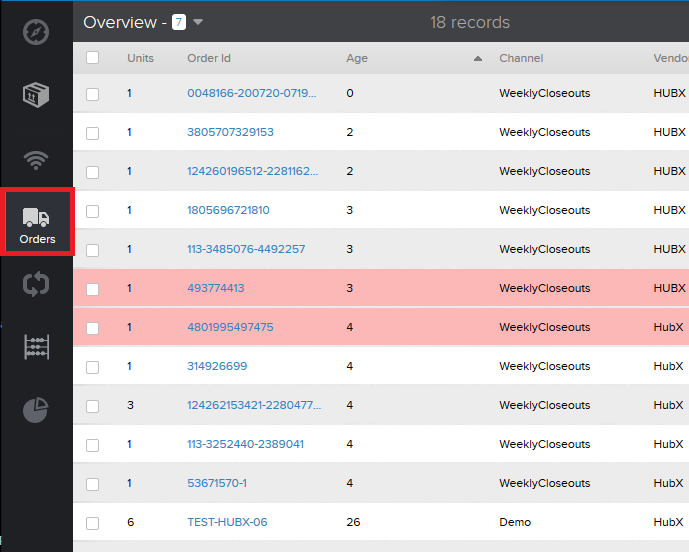
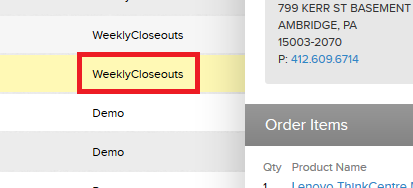
2. One by one, go through each of the first 10 orders your store has received. Click on each order to open the Quipt drawer. Make a note of which channel the order is for
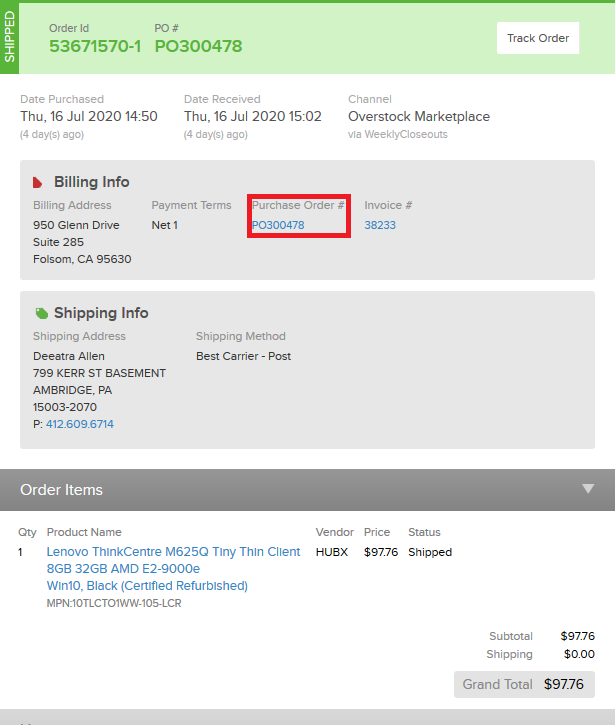
3. Once the drawer is open, click where it says "Purchase Order" to download and open the associated purchase order file
4. Once you've downloaded and opened the Purchase Order file, copy the SKU # like seen here
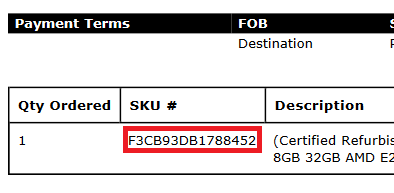
5. Open your Inventory drawer, and search the SKU #

Checking the Channel Markup Price
6. Open the SKU drawer, and view the channel your order was sold through (In this case WeeklyCloseouts).
Hover your mouse between the "Recovery and "SRP" to show the "Estimated Fees" like seen here.
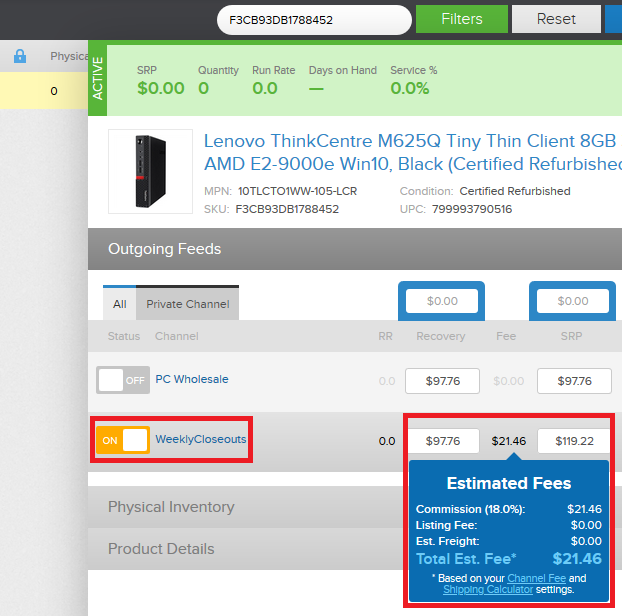
7. The Commission percent is the markup price set for a channel, and the profit you make when an item sells on said channel. In step 6 above, the image shows an 18.% commission rate for the channel WeeklyCloseouts
If the number shown is incorrect, follow these instructions view and modify the channel markup price: https://getquipt.zendesk.com/hc/en-us/articles/360046485091-How-to-view-and-modify-the-markup-price-for-channels
Checking the Automatic Feed Rules
8. Next, check if the item sold on the channel it was supposed to sell on. In some cases, you might have certain items you only want sold on specific channels. For example, The item in step 6 sold on the channel WeeklyCloseouts.
In Quipt, automatic feed rules are what govern which channels your items sell on. If an item sells through the incorrect channel, follow these instructions to view and modify the automatic feed rules set for the channel: https://getquipt.zendesk.com/hc/en-us/articles/360046043012-How-to-view-and-modify-automatic-feed-rules-for-channels
Checking the Item Content
9. Lastly, check your item content to ensure it was correctly entered into Quipt. Using either the SKU # or MPN, cross-reference the Quipt content against your available catalog information.
With the Inventory drawer open, check each of the following for accuracy:
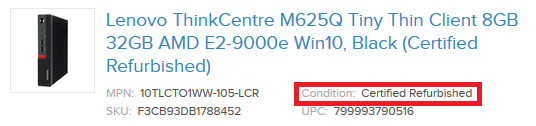
10. Product Grade
Does Quipt show the correct Condition for your item? If the item is Refurbished or Used, does Quipt include this in the title?
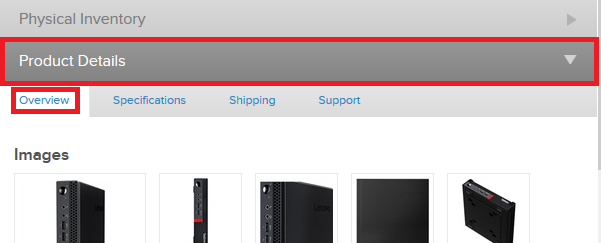
11. Images: Product Details > Overview > Images
Does the product depicted in Quipt accurately represent the product you're selling?
12. Description: Product Details > Overview > Description & Features
Is your product being correctly described? If your catalog information has "special notes" (e.g. has an Arabic keyboard), are they included in Quipt?
13. What's Included: Product Details > Overview > What's Included
Does Quipt correctly list everything that comes in the box with your item?
14. Shipping: Product Details > Shipping
Does Quipt have the correct shipping box dimensions and weight for your item?
15. Support: Product Details > Support
Does Quipt include the correct warranty details for your product?
Summary
16. Again, we recommend the above steps are followed for each of the first 10 orders received by your Quipt store. Finding and correcting content errors early on sets your store up for success, and prevents content related customer service issues
17. If you do find any of your item content was incorrectly entered into Quipt, make a detailed note of the inaccuracy, and send to the appropriate Quipt team member so it to be quickly corrected. Make sure to include the SKU # affected
Comments
0 comments
Please sign in to leave a comment.