Automatic Feed Rules in Quipt are what let you establish which content you want to publish, and where you want it to publish. They also ensure that as your content goes in and out of stock, the listings for said content will automatically reactivate and deactivate
Here's how to add, view, or change the Automatic Feed Rules which are set for your content:
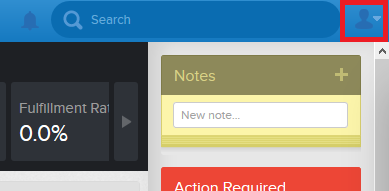
1. Once you've logged into Quipt, click on the icon like you see in this image. It's located in the top-right of the window
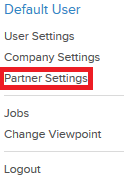
2. In the drop-down menu that opens, click on 'Partner Settings' like you see here
3. The window that opens up is a list of the channels you sell on, just like WeeklyCloseouts that you see in the image here. Click on the channel you want to change the automatic feed rules for

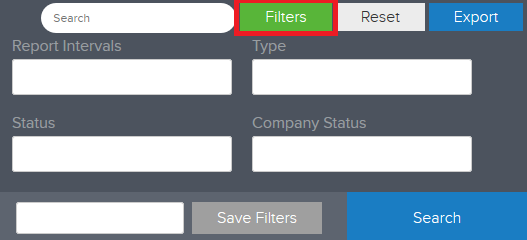
4. In the top-right of your windows, there's also a button for 'Filters'. If you select this it will show the menu seen here. You can use this to filter the page for only channels you want to display
5. After you click on the channel you want to view or change the rules for. In the drawer that opens click "Edit Channel'

6. In the next drawer, you should see several options. Hover your mouse over the one for 'Settings' and click the 'Edit' button that shows up

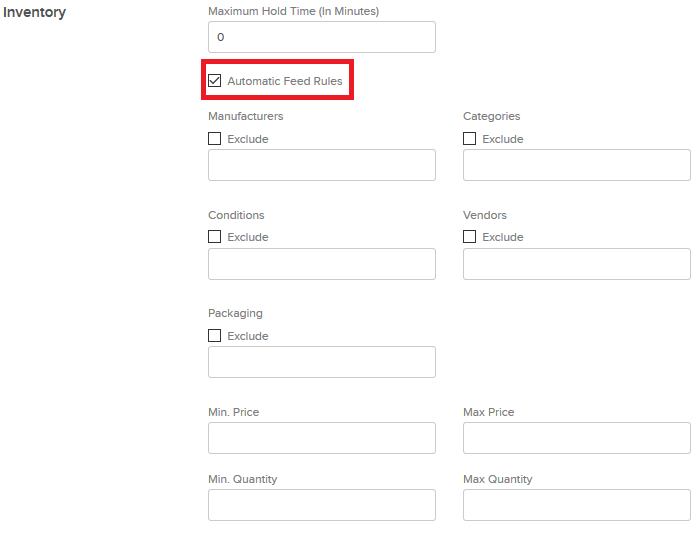
7. Here you should see an option that says 'Automatic Feed Rules'. If check-marked, that means automatic feed rules are enabled for this specific channel.
You can also setup rules for items that you want to exclude from automatically publishing. For example if you want exclude a specific manufacturer's items, simply check-mark the the box below 'Manufacturers', and in the text field start typing the name of the manufacturer you want to exclude.
8. To save any changes, make sure to scroll to the page bottom, and click the 'Save' button. If you don't want to save your changes, instead select the 'Close' button
Comments
0 comments
Please sign in to leave a comment.