Index:
Accessing Category Management
1. To access the Category Management modal, click the top right dropdown and select 'Administration Settings'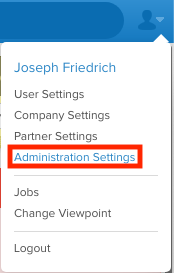
2. Brings you to the category overview interface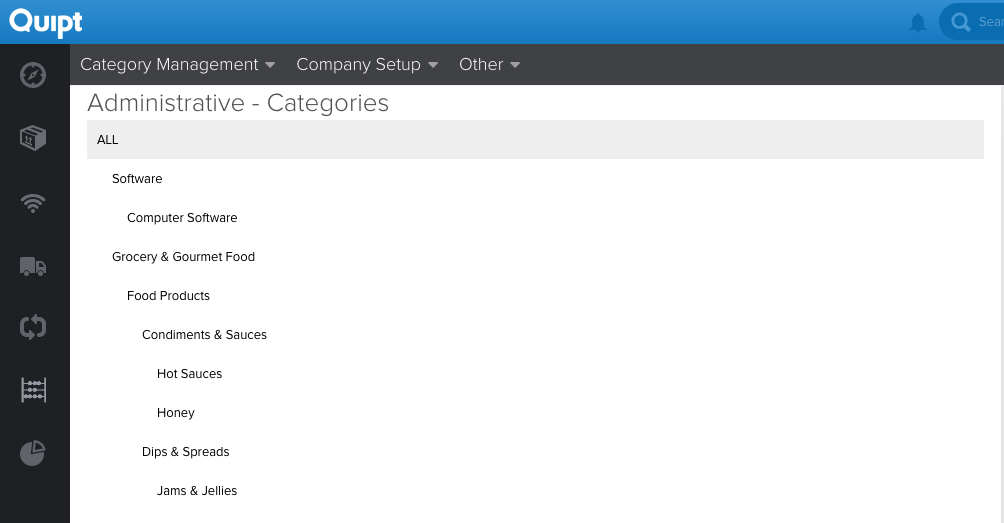
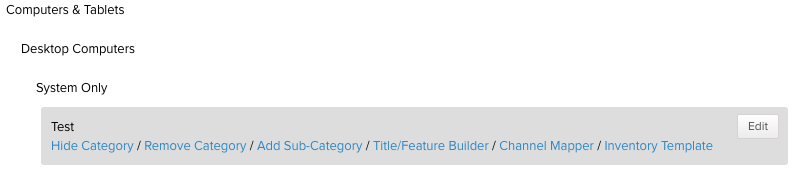
3. Clicking on any category/subcategory in the category tree will display the following options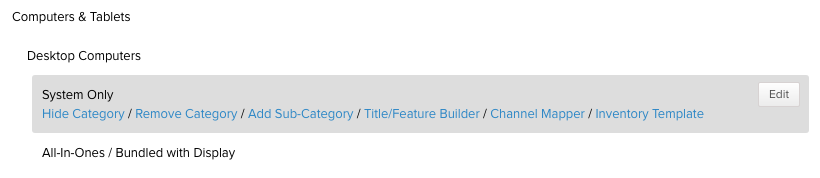
Hide Category
Hides selected category/subcategory from content creation users, but leaves it in Quipt without removing it
- Clicking 'Hide Category' opens the following popup
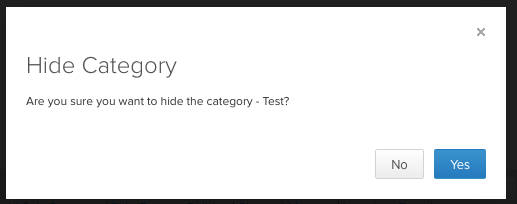
- Selecting 'Yes' hides the category. Hidden categories are grayed out, and show a 'Hidden' label
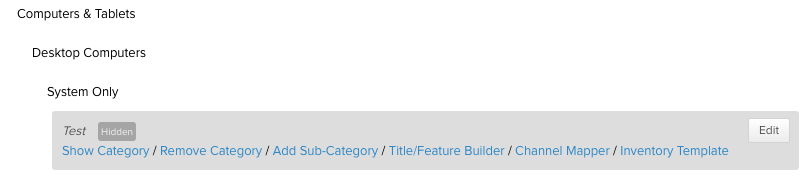
Show Category
Displays the selected category to content creation users, if it was previously hidden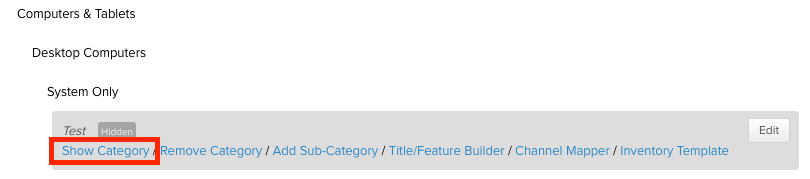
- Clicking 'Show Category' opens the following popup
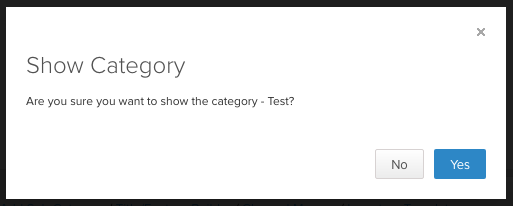
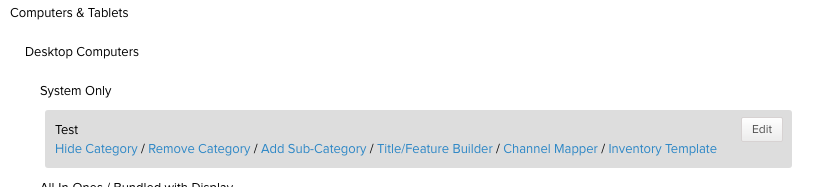
- Selecting 'Yes' removes the 'Hidden' label, and the category will no longer show grayed out
Remove Category
Removes selected category/subcategory from Quipt (there is no undo for this, so be careful)
- Clicking 'Remove Category' opens the following popup
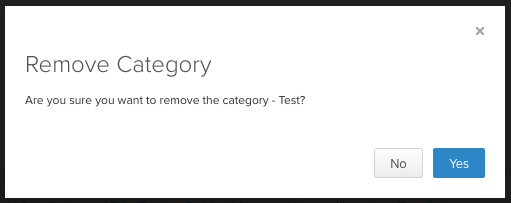
- Selecting 'Yes' permanently removes the subcategory from the category tree (e.g. 'Test' in this example was removed from under 'System Only')

Add Sub-Category
Adds a child subcategory underneath the selected parent category. End users can only build out content under a 'final' subcategory (a category with no more child categories under it).
For example, 'System Only' is considered the final subcategory under 'Electronics > Computers & Tablets > Desktop Computers > System Only'
- Clicking 'Add Sub-Category opens the following popup
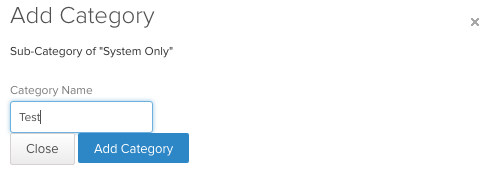
- Type in the name for the for your subcategory, and click 'Add Category'. In this example 'Test' is added as a sub-category to 'System Only'
- As closely as possible, we try to mirror Google's category structure, found here: https://www.google.com/basepages/producttype/taxonomy-with-ids.en-US.txt
Comments
0 comments
Please sign in to leave a comment.