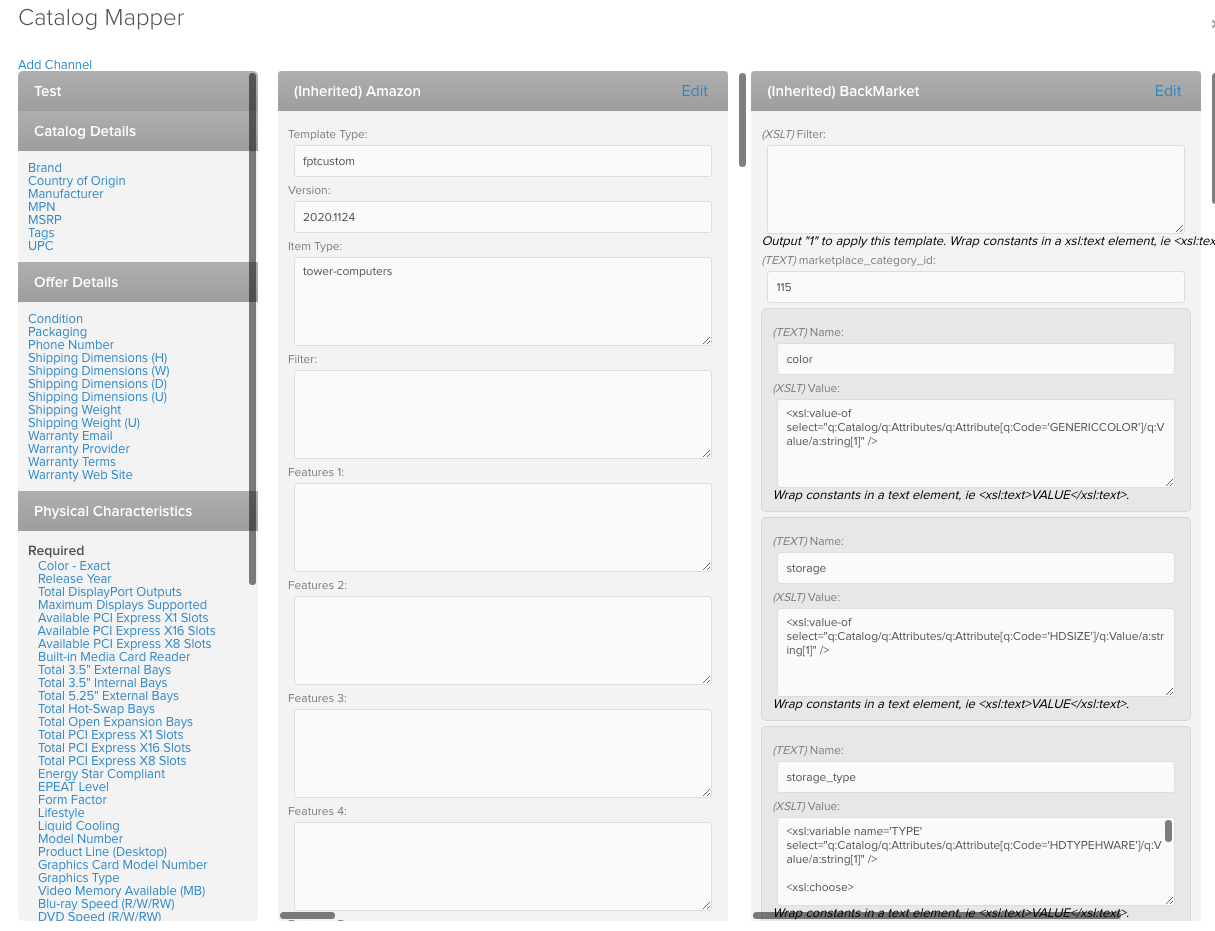
This is the channel card view for any given sub-category where you can add, edit, or remove mapped channel cards
For more Catalog Mapping information related to Tools, Category Templates, Channel Guides, and XML/XSLT, see Relevant Links
Index:
- Accessing Channel Mapper
- Adding Channel Cards
- Removing Channel Cards
- Mapping Attributes
- Export Testing
Accessing Channel Mapper
- To access, click on 'Channel Mapper' for any sub-category in the Category Manager

- This will open the Catalog Mapper drawer
Adding Channel Cards
- To add a channel card to the mapper for the selected category, click 'Add Channel'
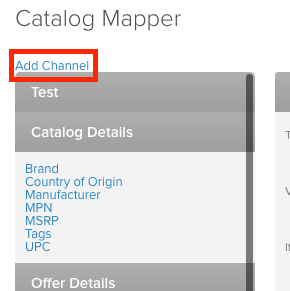 '
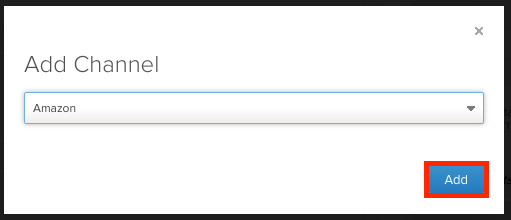
' - This opens the following 'Add Channel' popup
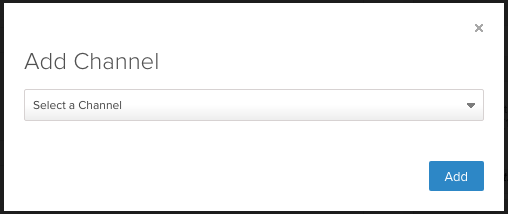
- Use the dropdown to select a which channel to add a card for
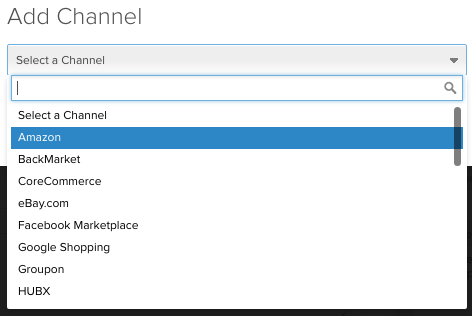
- Hit the 'Add' button to add a card for the channel to the mapper
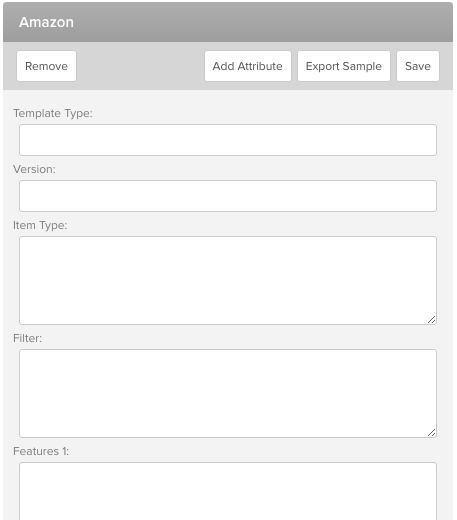
- In this example, we added an empty card for 'Amazon' to the mapper
Removing Channel Cards
- To remove a channel card from the mapper, click the 'Remove' button for any channel card
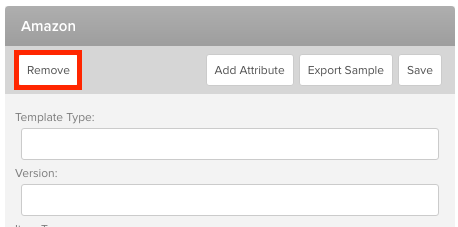
- After a moment you'll see a 'Saved' popup in the bottom corner of the screen. If you exit out of the channel mapper, the channel card you removed will no longer show in the drawer the next time you open 'Channel Mapper' for that category
Mapping Attributes
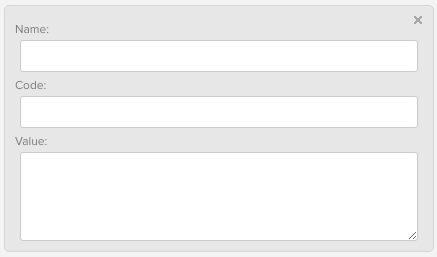
- To map attributes to a channel, click the 'Add Attribute' button in the channel card
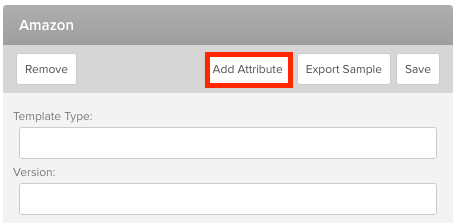
- This will add an empty 'attribute' field to the bottom of the channel card
- Use the left column to select which Quipt attributes you want to remap using the channel card
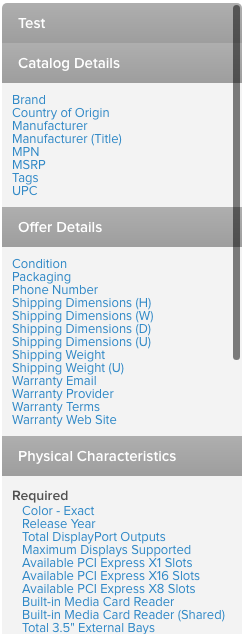
- To do so:
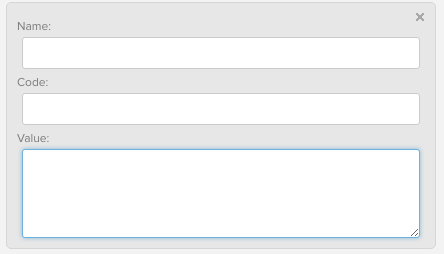
- Highlight the 'value' field for for the channel attribute you're mapping
- Click the attribute you want to add the output code for (e.g. 'Brand')
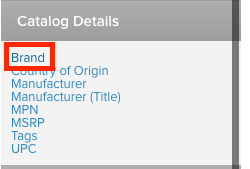
- Adds the output code for the attribute to the 'Input' field of the highlighted section
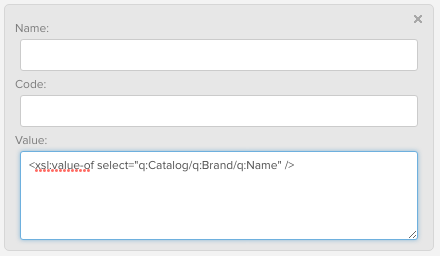
- Highlight the 'value' field for for the channel attribute you're mapping
Export Testing
- Any time you map new channel cards, or edit the mappings for existing ones, it's super important to test whether your code works before saving it
- To do so, we have a handy 'Export Sample' button for every channel card
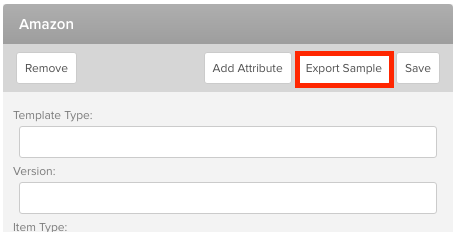
- Clicking this will export your code into a sample download file. Just knowing that it exports is most important, as it confirms there're no code-breaking elements that would prevent Quipt from exporting content for that category to the channel you're mapping for.
Comments
0 comments
Please sign in to leave a comment.