If you have noticed that there are one(or more) of your listings that have this error:
"Content: Error(s). Item not created. Error:[An item with the same manufacturer and manufacturer part # already exists in our system with a different UPC [641275668443]. Please review and update the item you are trying to create.]"
then you may want to consider manually linking those items on Newegg Marketplace/Newegg Business in order to get them successfully published.
How To Manually Link an Item
- Get the MPN (manufacturer part number) for the item that you need to get published (This works best for Apple products). You can also get key information from the listing, as shown below. You can find this information in Quipt.
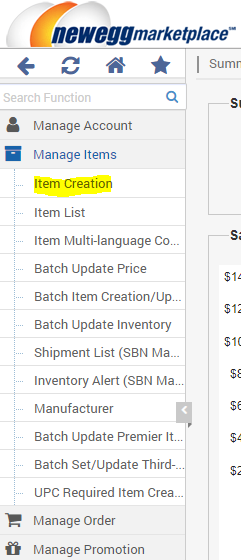
- Login to your Newegg Seller Portal, and on the left hand side, under the 'Manage Items' tab, click on 'Item Creation'.
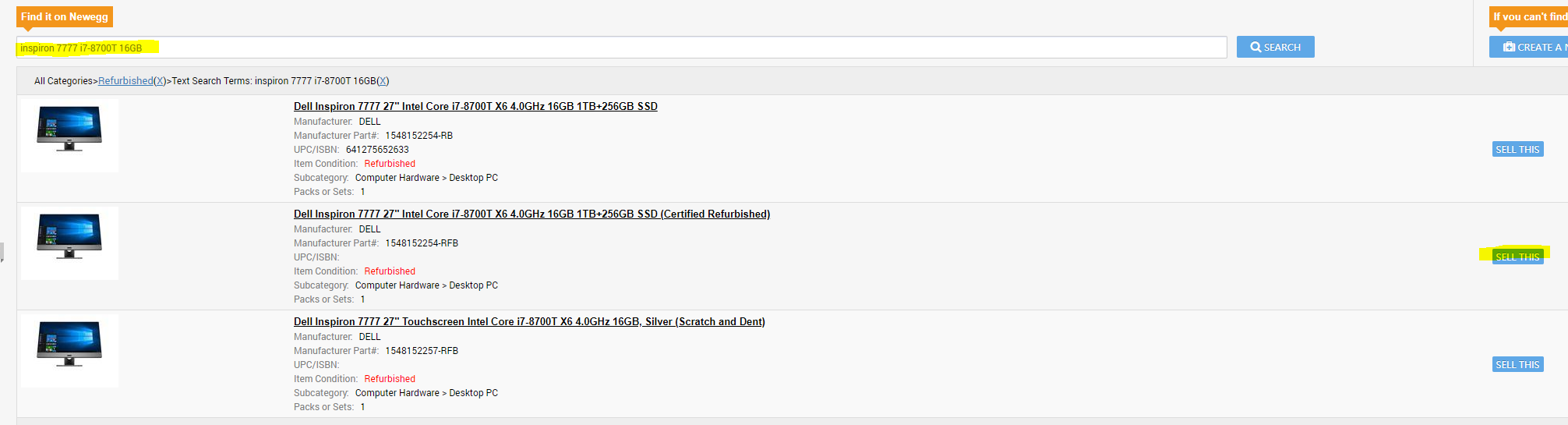
- Paste the MPN value in the search bar, with some other key indicators that will make looking for your product easy. (In the example in the picture, we are looking for a Dell Inspiron 7777 All-In-One computer. Some key properties of this item are the i7-8700T processor and 16GB storage.)
- The search will return a number of results for you to look through. When you have found a good match, simply hit 'Sell This' and you will be taken to the screen where you can complete your item details.
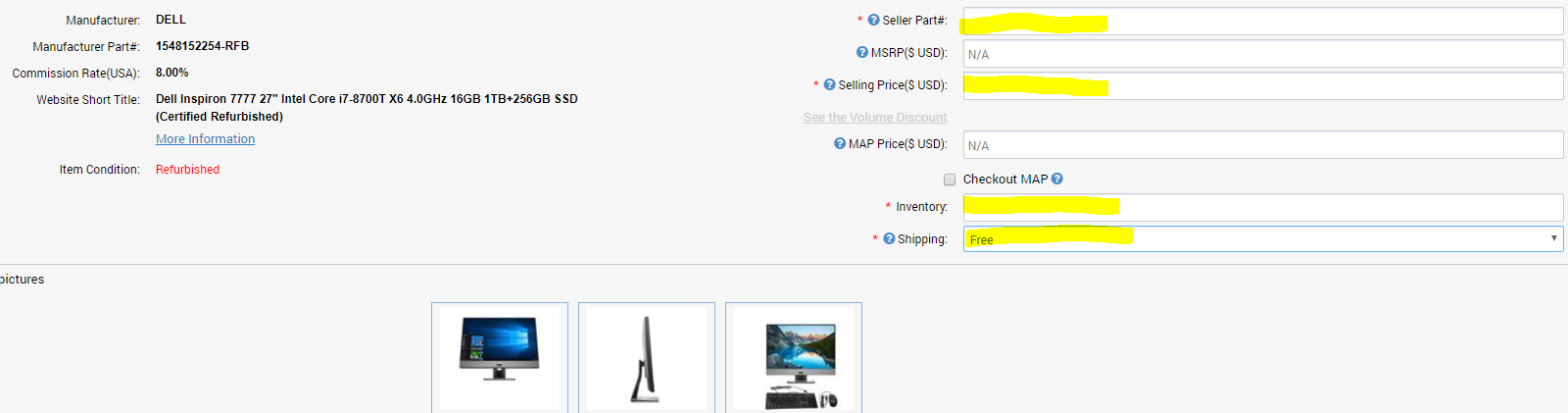
- You will hit 'Continue' at the bottom of the page until you get to the 'Price, Shipping, Inventory and Images' page. Once there, input the Quipt SKU for the item you want to link, the price you want to sell it for on Newegg, the number of units you have, and the shipping option you use(typically 'Free').
- Click Submit, located near the bottom right of the page, and continue without adding a similar item. Then, click the link to go back to your item list page.
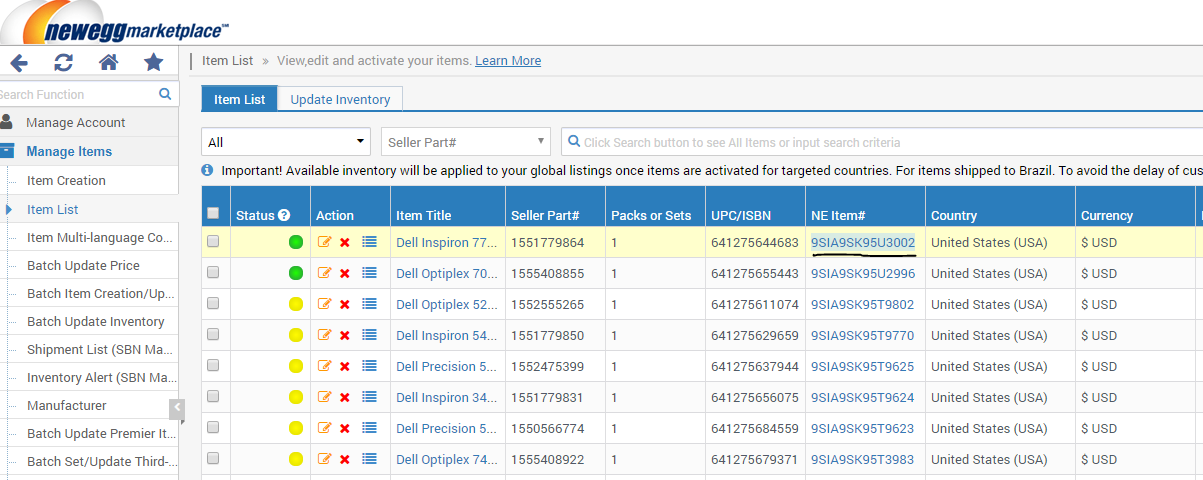
- Once you are on your item list page, do an empty search so you can see all items in your inventory. The new listing should show up as the first item in your inventory list after a few minutes, so wait and then refresh the page until the item shows up.
- Once the new item is on top of the list, you will want to copy the NE Item# from the listing.
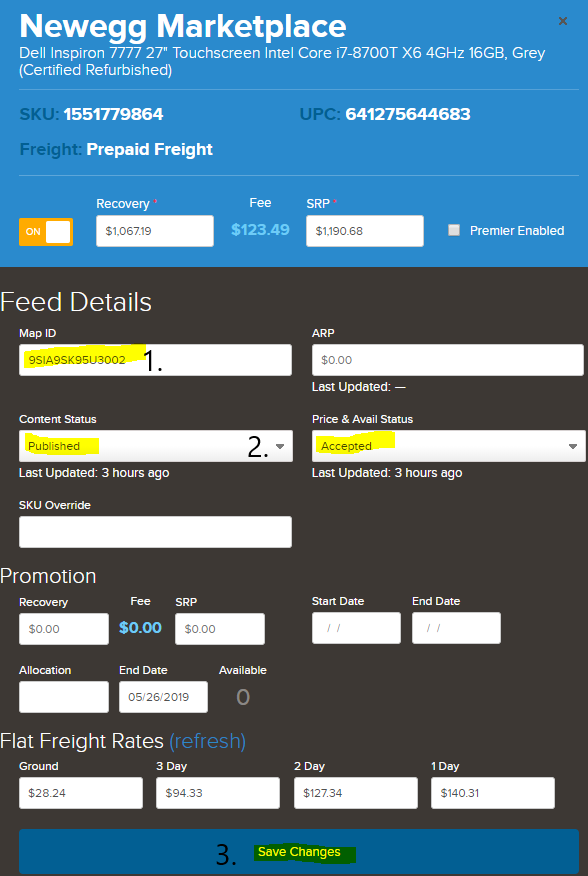
- You will then go back to Quipt, and search for the original item SKU again (unless you left the inventory screen up). Go to the Newegg Marketplace drawer, and paste the NE Item# in the section labeled 'MapID'. Change the Content status to 'Published' and the Price and Availability status to 'Accepted'. Click 'Save' to save changes, and then wait until the listing has gone green. This confirms the linking was successful.
- SIDE NOTE: During the part of the process where you are choosing an item to link to, you might go to click 'Sell This' and then get a message on your screen similar to the one below. This means that you already have this item for sale in your store, and you cannot link to it. If there are other options, choose from one of them. If this was the only option in the search, that means you cannot manually link this item, and you may have to create it manually in the Newegg portal.

Comments
0 comments
Please sign in to leave a comment.