Allocated inventory is inventory you set aside specifically for a promotion. Allocated inventory is reserved for only the channel it's allocated to, and the inventory will not be available on other channels while it remains allocated.
The channel in which you allocate inventory will see the total quantity.
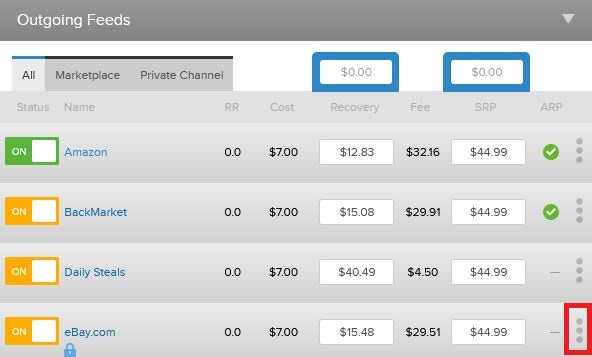
1. Open the outgoing feeds for the product you want to promote, and click the 3 vertical dots for the channel you wish to allocate inventory to. This will open the Feed Details
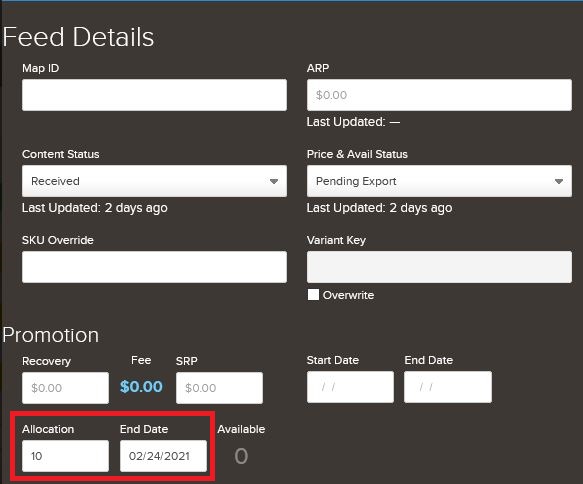
2. Under Feed Details, scroll down to the Promotion section. Enter the amount of inventory you want to allocate to the channel, and the 'End Date' for when your promotion ends. After the End Date passes, allocated inventory will 0, and inventory will once again become freely available to all channels your product is published on
3. Save Changes

Comments
0 comments
Please sign in to leave a comment.