*Note: This is the process for adding inventory to Quipt manually using the UI, or building out inventory already in the Quipt UI but that exists in an 'Incomplete' status (meaning it hasn't yet been matched to our category and attribute structure). See here for a video overview of the UI content creation process. The other avenues for getting inventory into Quipt are:
- Uploading via template file
- API Inventory Integration
Category explainer
Selecting the right category when building a SKU is very important for multiple reasons.
- Channel commissions depend on the category items are in, the category you place your new item into effects what the commissions are that you will be charged to list on different sites.
- The category you choose also affects where that item will get published on each different site. For example, if you incorrectly put a desktop into the laptop computer category, then that item would get published in the ‘laptop computers’ category of all websites you turn that item on to. This can be problematic because potential customers won’t actually see your item when they are looking at similar items, which means your item will likely sell slowly. You want to be as careful as possible when selecting a category for an item to be assigned to, because if you happen to choose the wrong one, build your item, and then realize your mistake, there is no simple way to go in and change the item category.
Selecting from within the UI
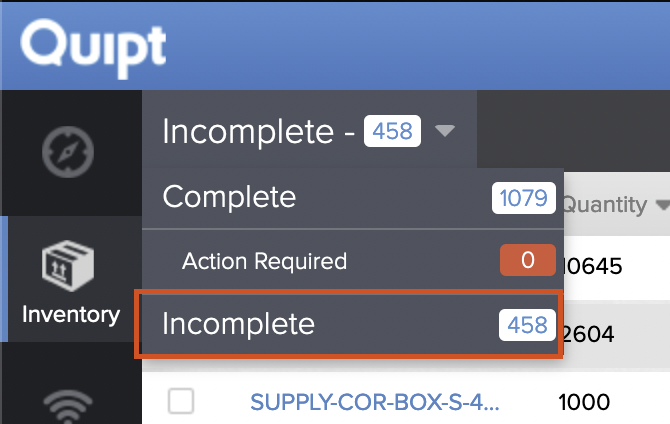
- From your Quipt login screen, go to Inventory > Click on the dropdown and select 'Incomplete'
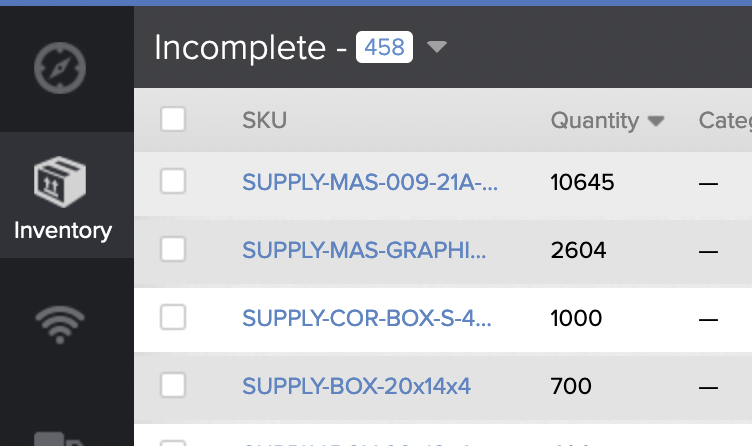
- From with your Inventory Incomplete screen, click to select any item
- Or, if adding an item that does not already exist in Quipt, hit the 'Create Inventory' button

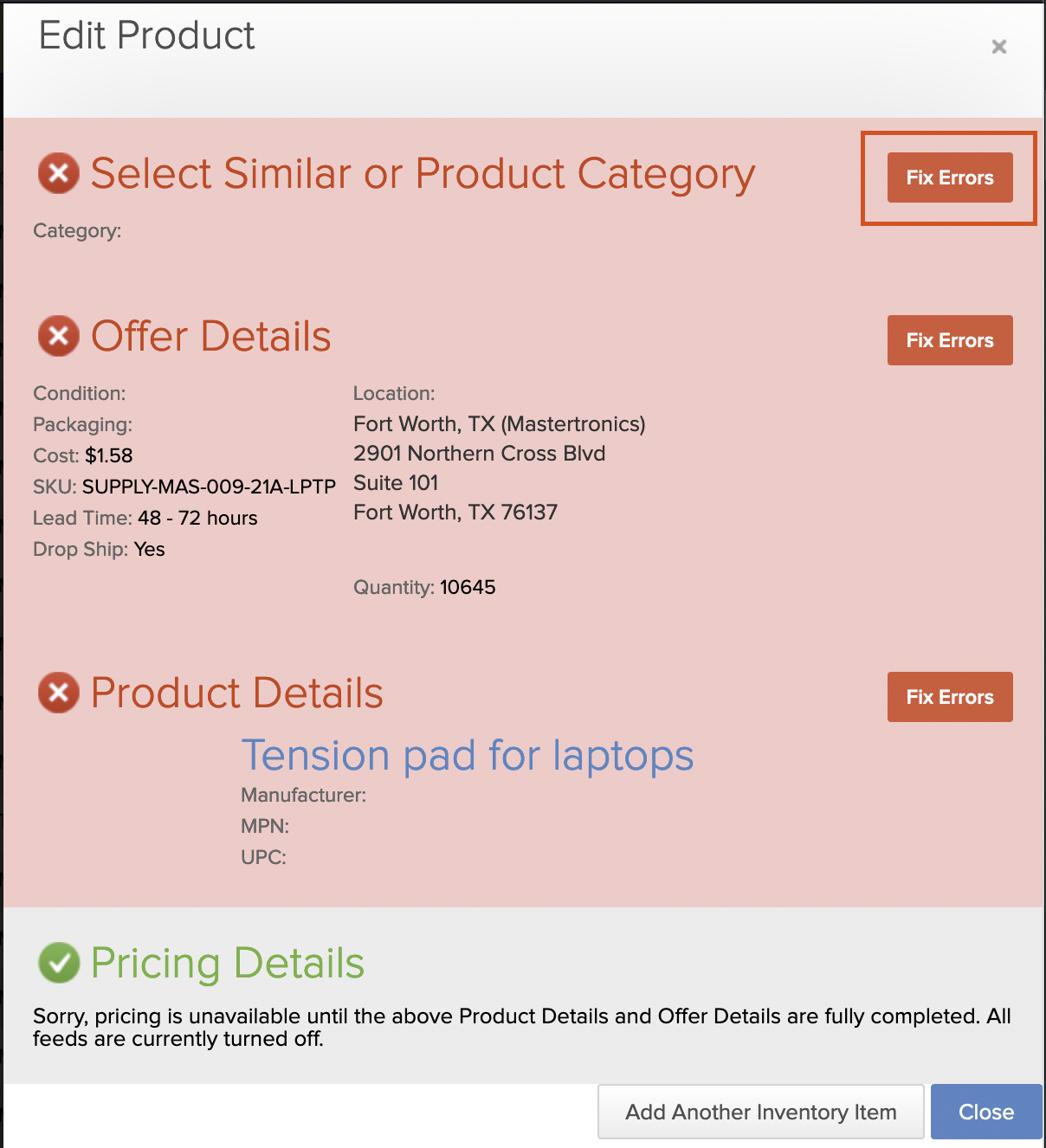
- In the 'Edit Product' drawer that opens, at the top click 'Fix Errors' next to 'Select Similar or Product Category'
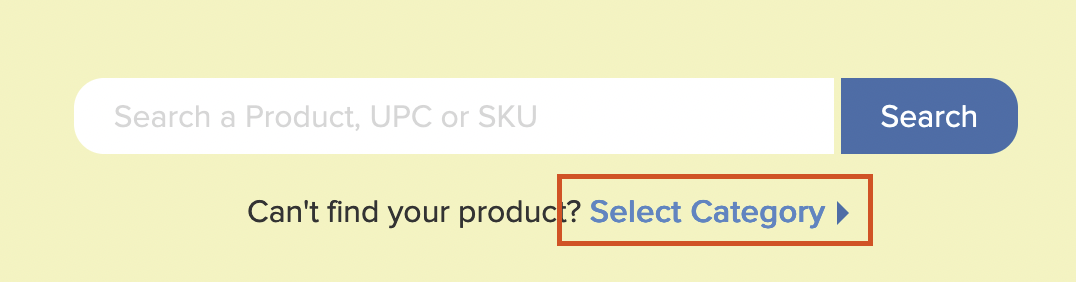
- Within the section that pops open, click on 'Select Category'
- This will bring up the 'Product Categories' like shown below. These are considered 'parent' categories, and can't be selected. Instead you'll need to select a 'child' category (subcategory)
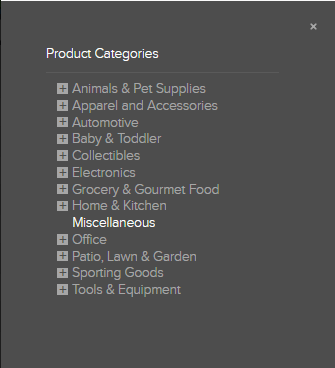
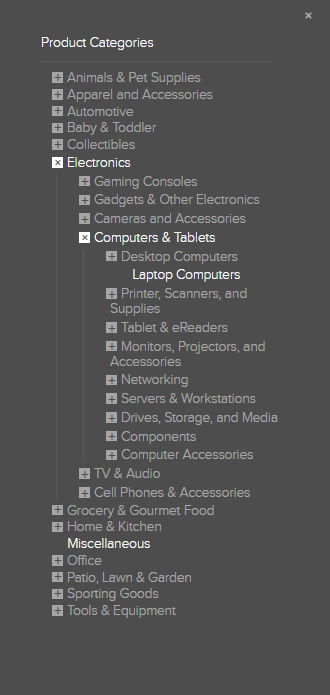
- To select a subcategory for your item, click on the '+' symbol next to a category to open the subcategories listed within. Categories with a '+' next to them are considered a parent category and can't be selected. Keep opening drop-downs until you find a category without the '+' next to it, this is a subcategory.
- Select the subcategory most appropriate for your item (e.g. 'Laptop Computers').
- In the case that you don’t see a category fitting the item you would like to build out, please reach out to your contact at Quipt if you are unsure whether the category exists. If it does not exist, you can request we add support by completing this form.
-
Currently we don’t have a front end list of the subcategories we have support for, though we’re working to add this. So using the UI like described above is the best solution to see which subcategories we have available. This is also the best solution to find the category path to the correct category ID when adding items through our API - https://api.getquipt.com/v2/categories
Comments
0 comments
Please sign in to leave a comment.