Once you have selected a category and completed the ‘Offer Details’ section for your item, the next section to be filled in is ‘Product Details’. This section contains all category specific information for your item. The information in this section will change based on the category you have chosen for your item.
Some major areas in this section, regardless of category choice, are:
1. Title & Alternative Title:
The title of your product is the important for relaying key pieces of information about your product at a glance
Requirements:
- The Title has a 100 character limit, and the Alternative Title has a 70 character limit. Both fields are required, and, depending on where your product is published, one or the other is used as needed to meet a channel's character limit guidelines.
- Depending on the category, and the number of attributes you're required to fill out, we have what we call the 'auto title/feature builder' available to use. You'll notice at the bottom of the page, under Basic Details, a toggle for "Would you like to use the title and feature builder Y/N"
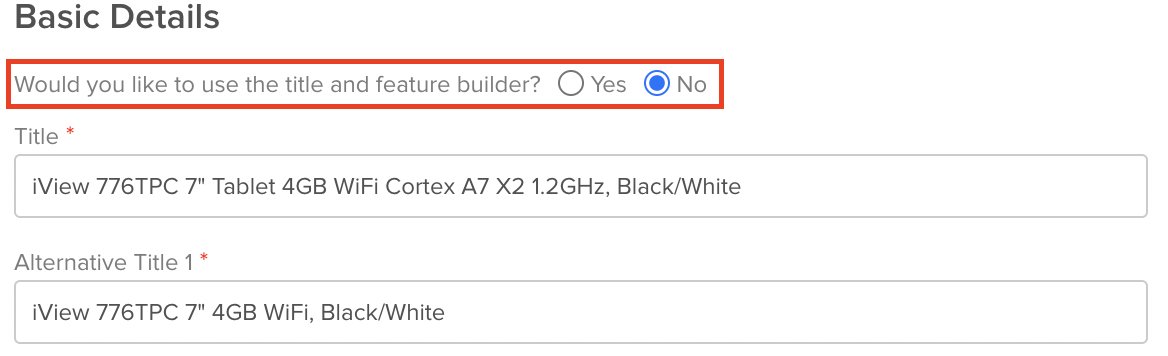
- Selecting 'Yes', and saving the page, compiles select attributes we've put together in order to present a title for your product. Selecting 'No' allows you to manually fill out this information instead, and save the page. In the example above, you'll notice we've taken the attributes for: Manufacturer, Model Number, Screen Size, Storage Size, Processor, and Color, and compiled them together.
- Note: if you select 'No' and choose to fill out your own title/features, we require each word in the title to be Capitalized, but not all CAPS.
- DO NOT add condition to the product title in Quipt. Quipt takes the condition you selected for your product, and reformats the title to meet the guidelines of each channel
- Format the first letter of each word in the title, like seen in the above examples. Do not format titles as all uppercase, or all lowercase. They should be consistent with titles as normally seen on sites like Amazon, Walmart, or B&H Photo.
- We recommend you stick to formatting the title like described here, as otherwise it can lead to your product listing being rejected, or removed, from various channels
2. Images:
Requirements:
- 1000 x 1000 minimum size required. Ideally you can get something over this size, but at minimum, we need an image with resolution of at least 1000 on the longest side.
- Use Google “Search Tools” and filter the Image Size → ‘Large’ for the best results.
- Clear, clean, professional, white background- No branding or marking (such as watermarks or web page advertisements).
- Image must relate to product being built exactly (double check colors (and ports!) and cross reference with other images to make sure the one you are using is accurate.
- Ensure no accessories are shown in the image that are not included with product. Also, if there are accessories included, ensure they are the same accessories shown in the picture. Ie: Don’t include a picture of an all-in-one with wired mouse/keyboard when it comes with a wireless set.
- Four (4) unique images are required for promotions, the more images the better!
3. Description:
- The description of a product is simply a short informational paragraph to help market an item. It is okay to copy and paste from other websites, as long as the information is correct, short, and concise. Make sure that the description is relevant to the catalog item that you are building! This is very important. 2-5 sentences will satisfy this section.
- Good example: “The HP 17-J109 offers increased power and productivity for all your computing needs. Featuring the latest Intel Core i7 processor, and a 500GB hard drive for all your storage needs”
- Bad example: “core i7, 500gb hard drive, fast and fun computer”
-
Terms to NOT use in Product Description: "Free Shipping", "Warranty", mentioning specific sales channels (e.g. eBay, Walmart, etc...), or mentioning condition (e.g. Refurbished, Certified Refurbished, etc..). - Using these terms can prevent your product from publishing to certain channels, as they are words which are disallowed in the description itself. However, it is okay to describe the physical condition of a product (e.g. "Has product skin on top lid", "Comes as pictured", etc...)
4. MSRP:
- MSRP means “Manufacturer’s Suggested Retail Price.” This is the base price that a manufacturer will set for their products, and displays what a consumer would expect to pay.
- *The MSRP MUST be higher than the SRP. Confirm prior to saving the SKU, otherwise the product will be rejected on certain websites*
5. Country of Origin:
- Our default is ‘Cambodia’. Please make sure to change that section so it is accurate. Most times, it will be China, which in Quipt is ‘People’s Republic of China’.
6. URL:
- You may copy and paste the URL for the spec sheet of the item into both areas which ask for a URL. You can do a google search to find the spec sheet for the item.
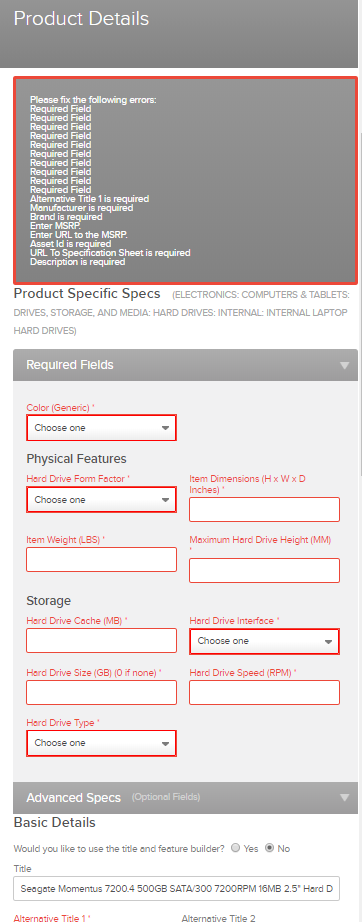
6. Advanced specs and 'Optional' fields:
-
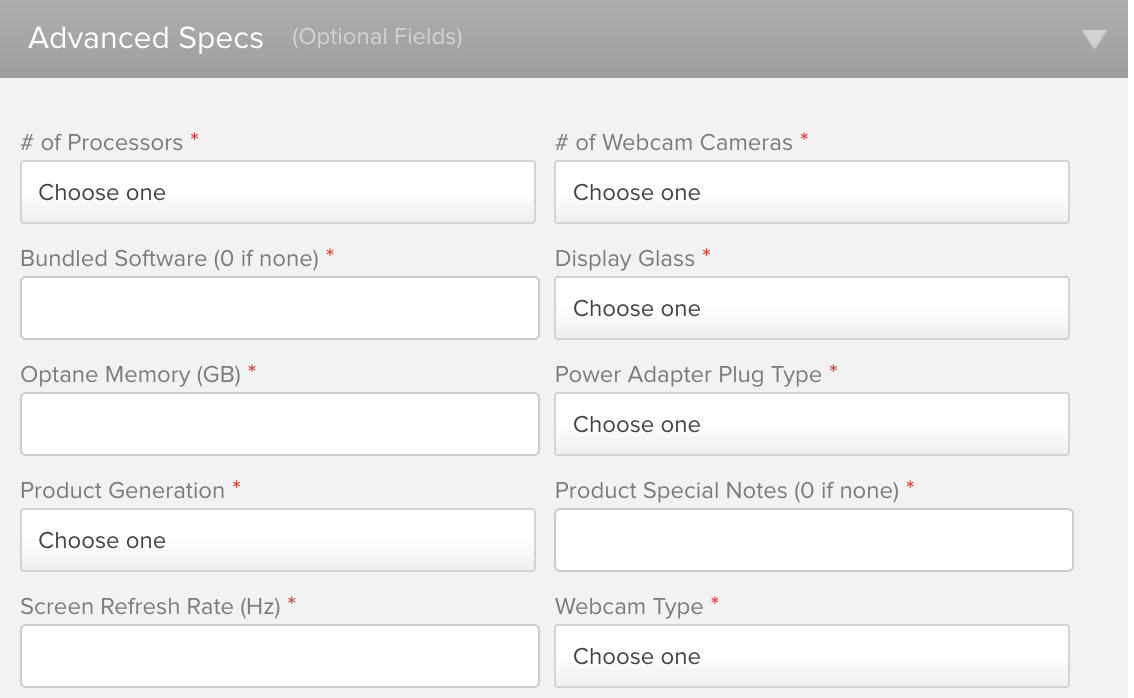
Optional fields are a section of item creation for attributes which are not required, but which you can optionally fill in if you have additional product information to provide. e.g. You can use the 'Product Special Notes' to describe if there's something unique about your item (e.g. SKIN ON TOP LID), or 'Keyboard Language' and 'Power Adapter Plug Type' if you're selling an item with a different keyboard language or the adapter for a different country.
-
These fields can only be filled out by you during new item creation, and cannot be edited by you once you save the product details section. If you need to add information for an already saved product, please let the Quipt team know so we can make the change for you, in our backend catalog.
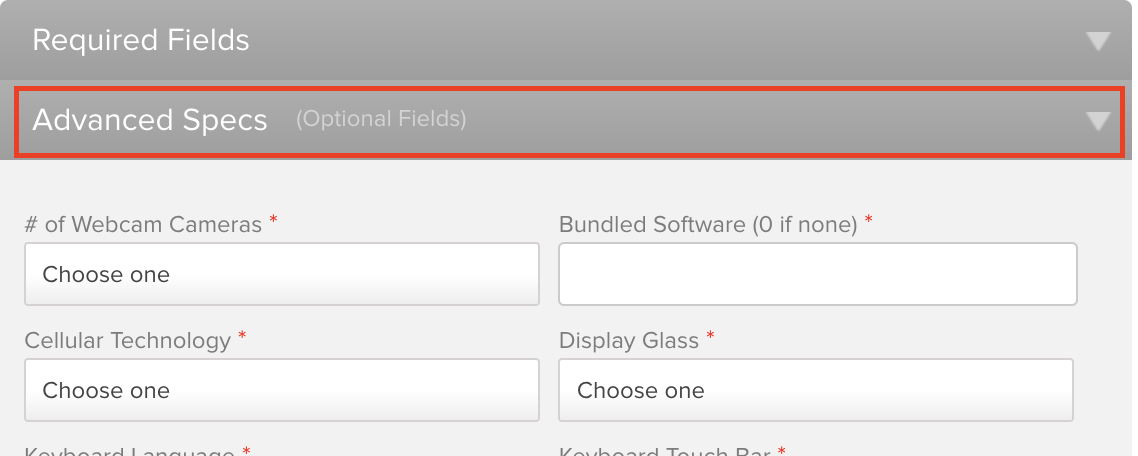
- If building/completing your product directly in Quipt, access the ‘optional attributes’ in the 'Product Details' details section of your product, by clicking on ‘Advanced Specs’ at the bottom of the page. Otherwise this section is normally hidden
-
If building/completing via category template file (e.g. ‘System Only’ or 'Laptops'), the ‘optional’ fields (e.g. 'Product Special Notes') are shown with grey column headers, and ‘required’ attributes are shown red column headers (e.g. Maximum Displays Supported).
There will be times when you may not be able to find certain information. Please do not hesitate to do some research and find the missing information you need to fill out the attributes accurately. Many times this is just a part of the process as not all the information can always be found on one page.
After all ‘Product Details’ have been filled in and the section has been saved, you will be taken to the next section, which is where pricing is filled in.
Comments
0 comments
Please sign in to leave a comment.