Once both the Offer Details and Product Details sections’ are filled out, the next step is completing pricing details. This is where you will decide what channels to turn items on to, and how much to sell the item for on each channel.
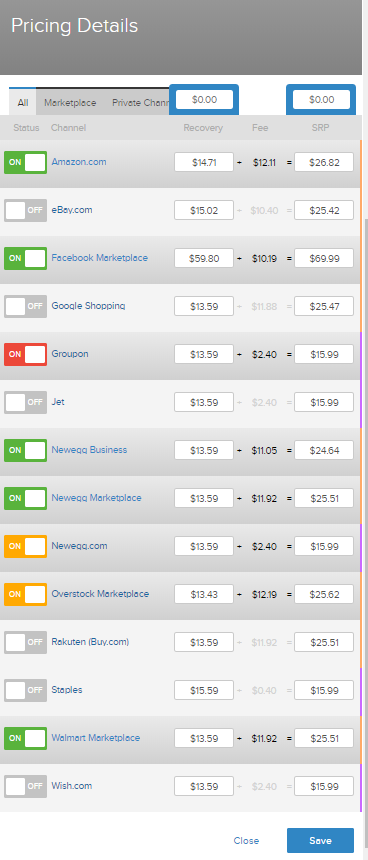
- Recovery is the price which you want to sell your item to Quipt for. If you input a number into the ‘Recovery’ section and tab over, the prices in the other columns will auto-populate. You should be able to see SRP (suggested retail price) reflected once recovery is inputted.
- SRP is what you want your item to sell for on channels. Depending on the fees for each channel, the SRP may look different even though you’ve entered the same recovery for all channels.
- This same concept can be applied in the opposite direction. If you want to sell an item for a specific price, you can type that price into the SRP section, tab over, and the recovery price will update to reflect the changes. You can hover over the ‘Fees’ section to see what the channel fees are for the item.
- This same concept can be applied in the opposite direction. If you want to sell an item for a specific price, you can type that price into the SRP section, tab over, and the recovery price will update to reflect the changes. You can hover over the ‘Fees’ section to see what the channel fees are for the item.
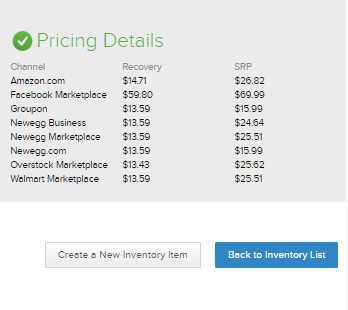
When you are satisfied with the pricing, and the channels you want to be turned on, hit the save button. Then you can either hit the 'Back to Inventory List' button, or the 'Create a New Inventory Item' button.
For info on how to complete price and qty updates in bulk, see: Price & Quantity Updates (Bulk)
Comments
0 comments
Please sign in to leave a comment.