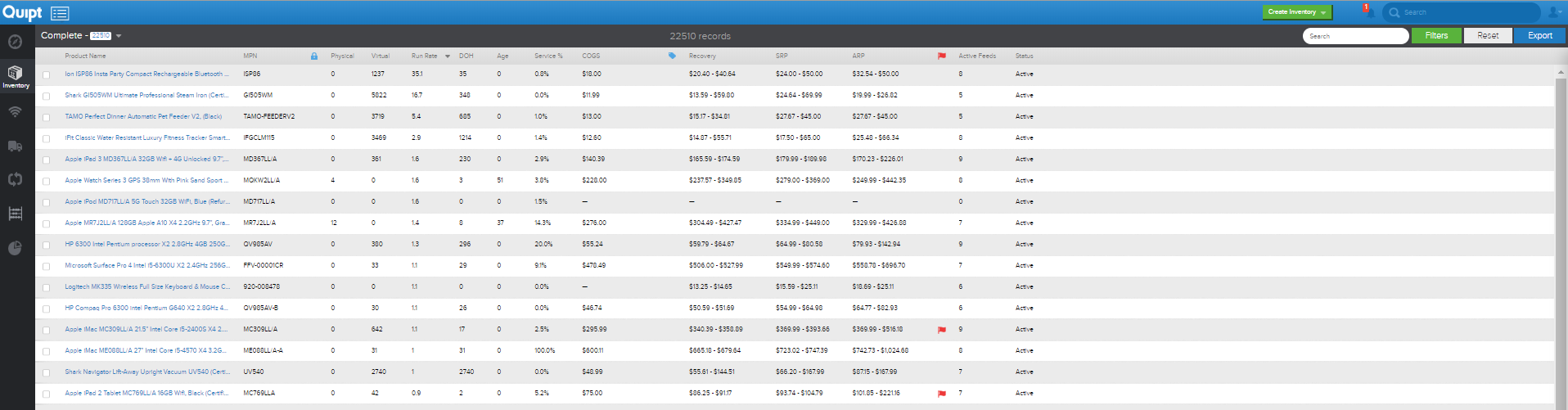
Navigation
The inventory page is where you will see a complete collection of your inventory items, whether published or unpublished. You are able to browse on this page by using filters in order to narrow down search results. The filters can be found in the upper right-hand corner of the screen, where the green ‘Filters’ button is.
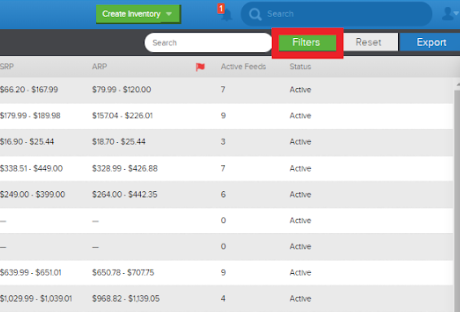
‘Filter’ allows you to see all the ways you can filter a search in order to get certain results. For example, you can filter by ‘Category’, ‘Warehouse’, ‘Vendor’ etc.
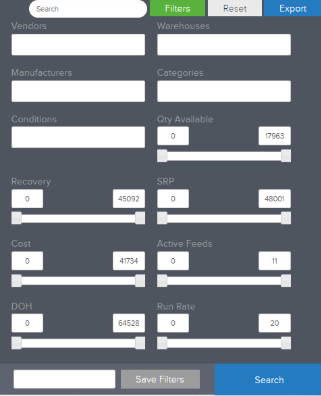
The filter settings can be particularly helpful when you have a large number of inventory items to go through- using the filter makes it so that you don’t have to search through every item individually to find the one item you are looking for. When you are done with a certain filter, you don’t have to manually clear out every filter box- simply hit ‘Reset’ and the inventory search will reset to the original settings, without a filter.
Different Views of the Inventory Page
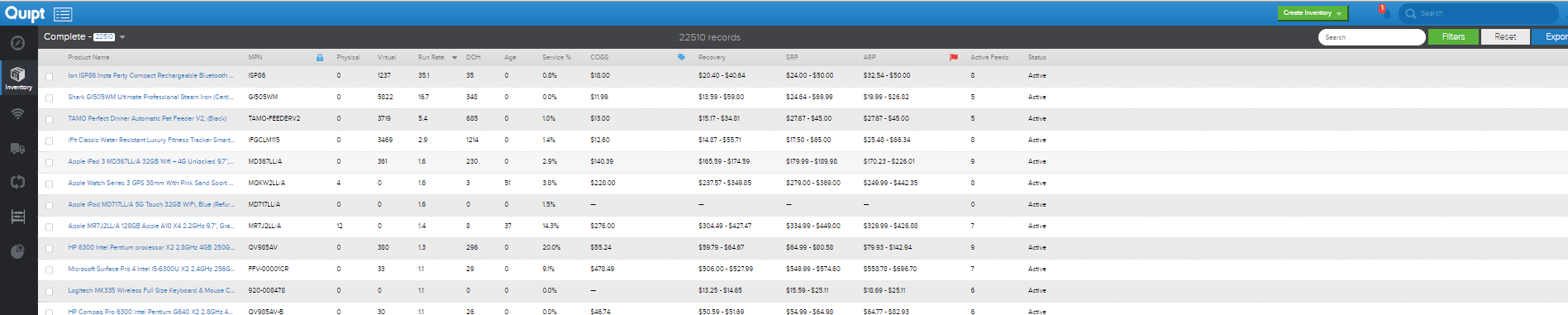
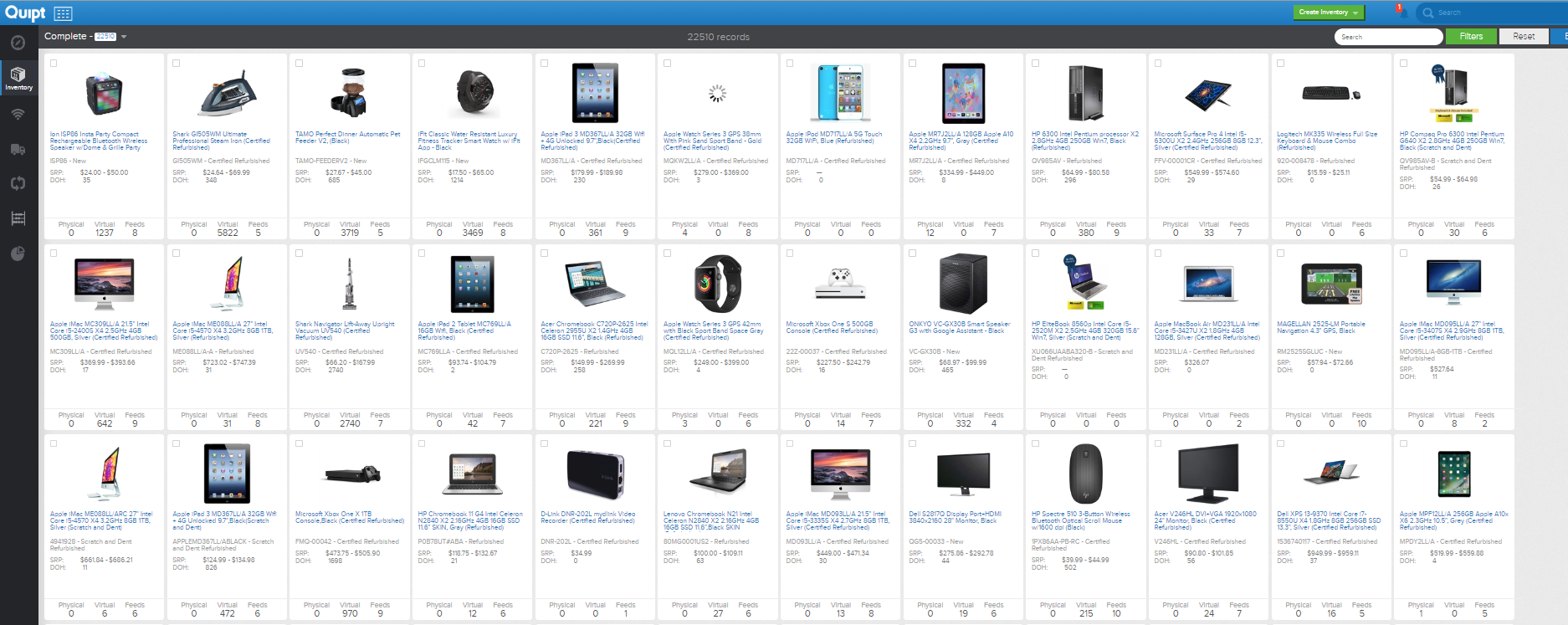
You can see the inventory page as a list of all inventory items, or you can choose to see the inventory page as a large collection of icons, with pictures. With the icon view, you can easily see pictures, inventory amounts, and active feeds. Using list view, you get a little more information, but it’s also a little more difficult to see the differences between items if they have very similar product names.
To change the view on the inventory page, you just click the small list button in the upper left hand corner.
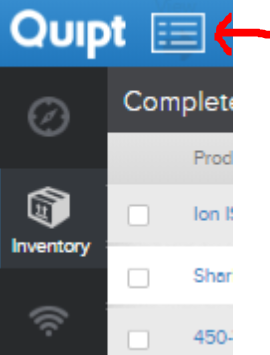
The default view for the Inventory page is the list view. You can change it to the icon view by clicking the small button as shown above.
Appendix of Terms
Towards the top of the Inventory page, just above all of the items and SKU’s, there are a number of terms and phrases that are listed. Following is an appendix of the most important terms on the page:
- Product Name: This is the name of the product.
- MPN: This is the manufacturer part number of the product.
- Physical: This is the number of inventory units you physically have of the product.
- Virtual: This is the number of inventory units you virtually have of the product.
- COGS: This is the cost of goods sold.
- Recovery: This is what it costs to get the items at a wholesale price.
- SRP: This is the suggested retail price.
- ARP: This is the actual retail price.
- Active Feeds: This is how many feeds this item is currently active on. Active means that the listing is successfully published on a site and that it has a map ID.
- Status: This is the status of the item. Example: ‘Active’, ‘Listings Needed’, etc.
Comments
0 comments
Please sign in to leave a comment.