
Shopify as a Market Maker Onboarding Guide
1. Access the sync tool
- Login to your Shopify store via the Application and select BOTH “Merchant Actions” and "Retailer Actions" (Will need store name (do not include ‘.myshopify.com’ suffix)
- Approve the plugin via Shopify (you should automatically be redirected via the installer)
- Provide the “User Access Token” to Quipt.
2. Create a new customer for each channel you intend to sync via Quipt. Each order placed will be created within the respective Channel customer in Shopify for visibility and ease of payment reconciliation
- First Name: Channel Name (Amazon, eBay, etc.)
- Last Name: "Quipt"
- Email: support@getquipt.com
- Input warehouse address (950 Glenn Drive, #285, Folsom CA 95630)
- Ph #: 888.982.4269
- Tax: Uncheck "Collect Tax"
- Save
- Open new customer(s) in Shopify, and provide the channel name(s) as well as the corresponding ID(s) at the end of the web URL
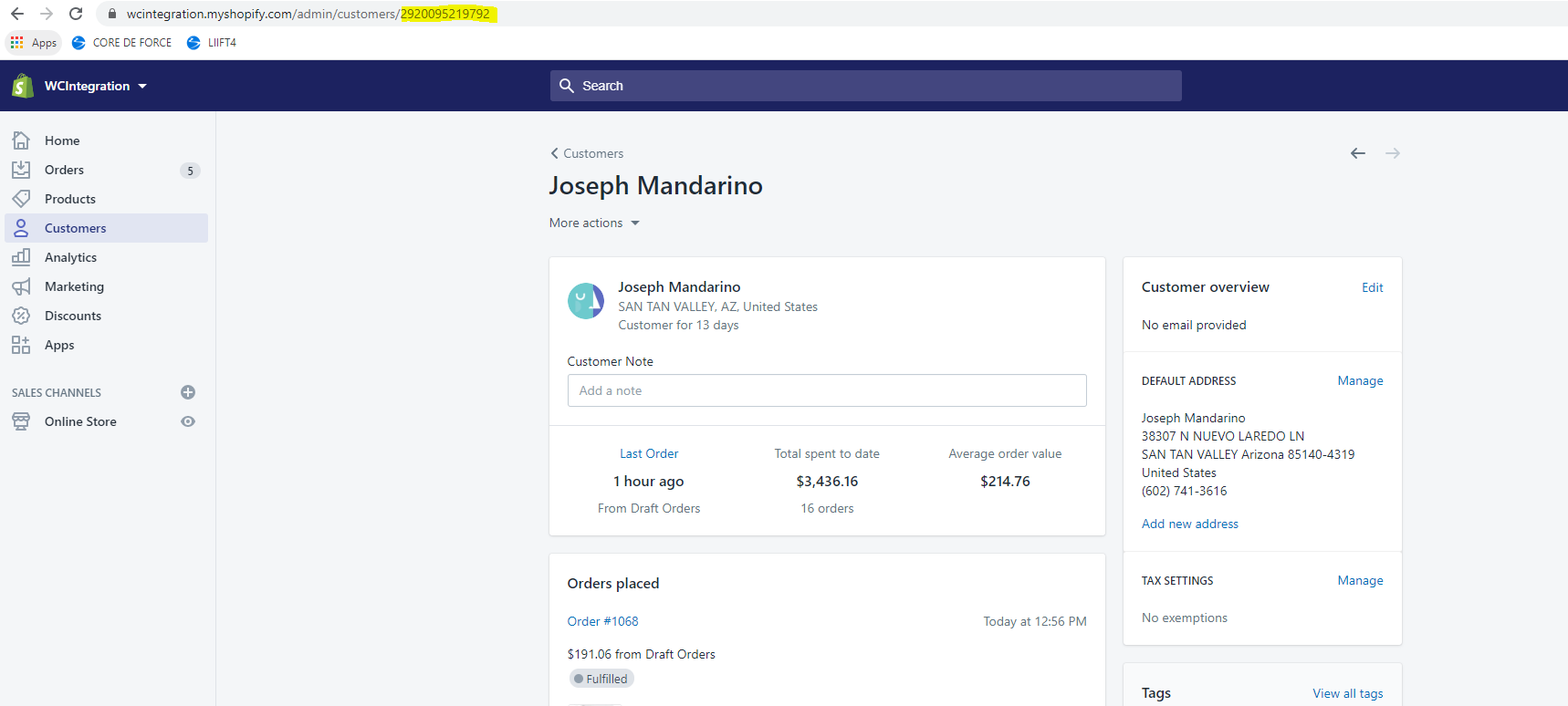
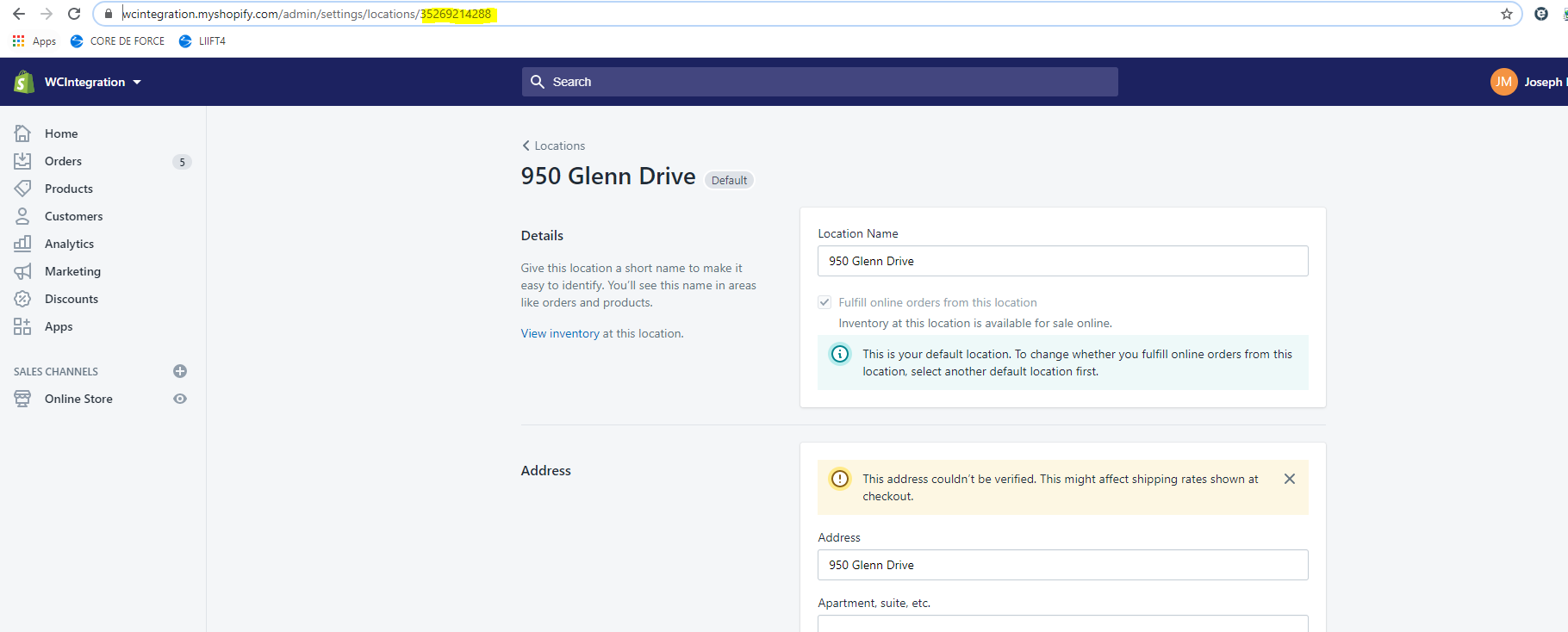
3. Open your warehouse locations and the ID of each warehouse you wish to sync inventory with Quipt. If there are any warehouse locations you want to exclude from Quipt please call them out
4. Confirm how you want Quipt to manage payment status when closing orders in Shopify
- Auth: Leaves order open and unpaid status
- Sale: Leaves order open and unpaid status
- AuthCapture (recommended): Closes the order and marks it as paid once shipped
5. From your Shopify store home page, click the top right corner username to access “Your account”
6. Next to “Stores, programs and resources”, provide the name of your store to Quipt (storename.myshopify.com)From your Shopify store home page, click “Settings” in the bottom left corner
- Access “Locations” tab
- Click “Add location”
- Name new location “Quipt Warehouse”
- Input warehouse address (950 Glenn Drive, #285, Folsom CA 95630)
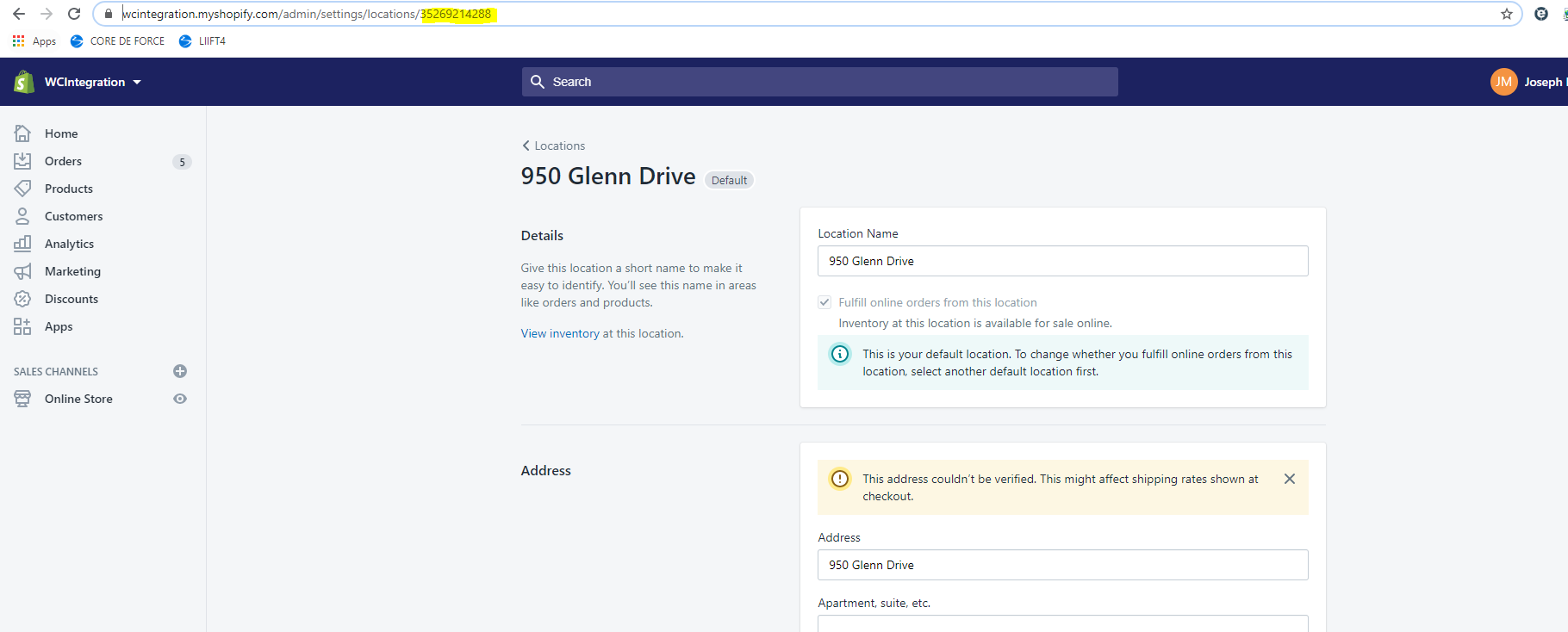
- Save, and when the page reloads provide the web URL string in the top of your browser to Quipt. Do not use this warehouse for any Non-Quipt related listings/sales
FAQs
Q. How does Quipt manage Fraud on Shopify?
A. Quipt uses Fraud prevention via Shopify. When an order is placed, a risk assessment is made by Shopify using a value between 0 (no fraud detected) and 1 (maximum risk). Within Quipt you can set your maximum risk threshold (0, 0.1, 0.3, etc.), any order with a risk valuation exceeding your threshold will be held in validating until manually approved within Shopify. Quipt recommends a "No fraud" setting of '0'. To approve the order, simply add the tag "Approved" within Shopify. You may also cancel the order in Shopify, which will subsequently cancel the pending Quipt order.
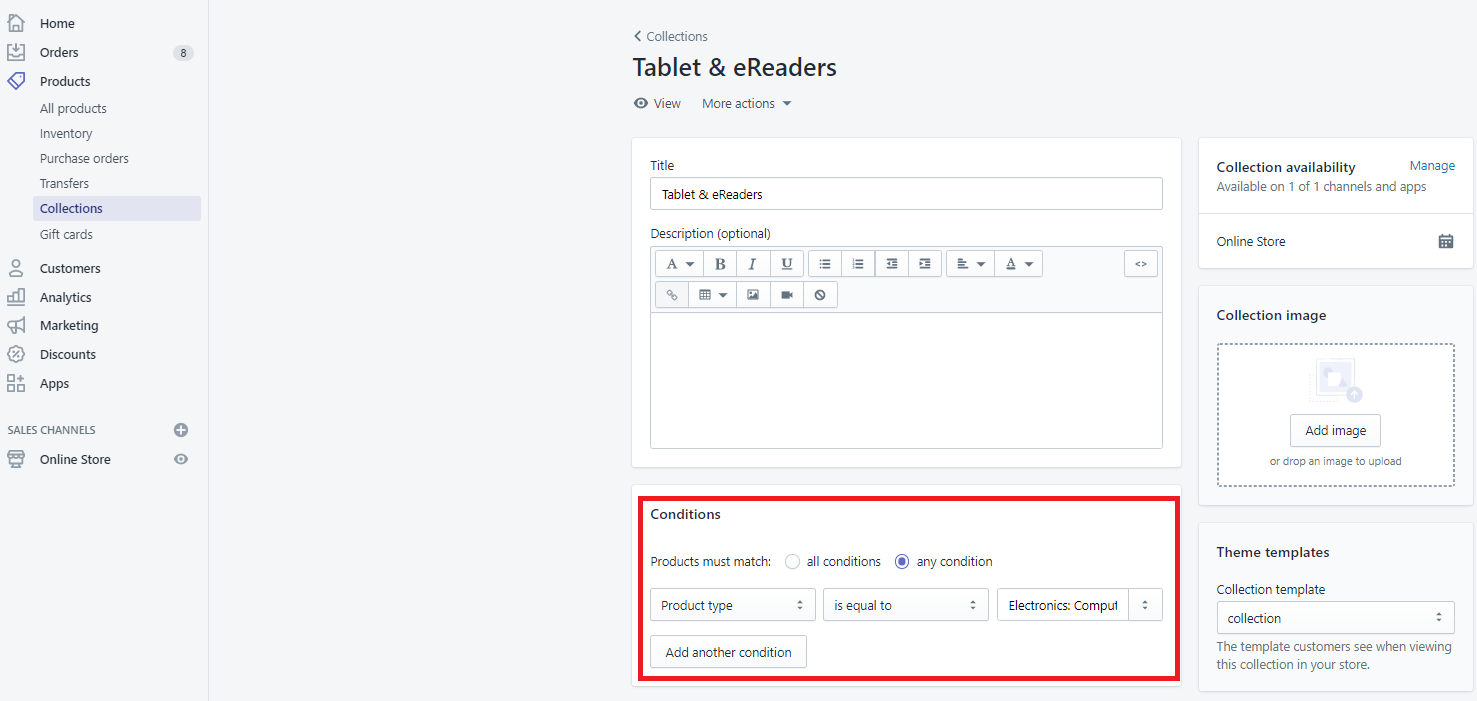
Q. How do I align Quipt's category structure to mirror my "collections" within my Shopify store?
A. When Quipt transmits catalog data to Shopify, the full category hierarchy is included within the "Product Type" field. By copying this data, you can set a rule within your collections when "Product Type" is equal to the Quipt category, add to your specified collection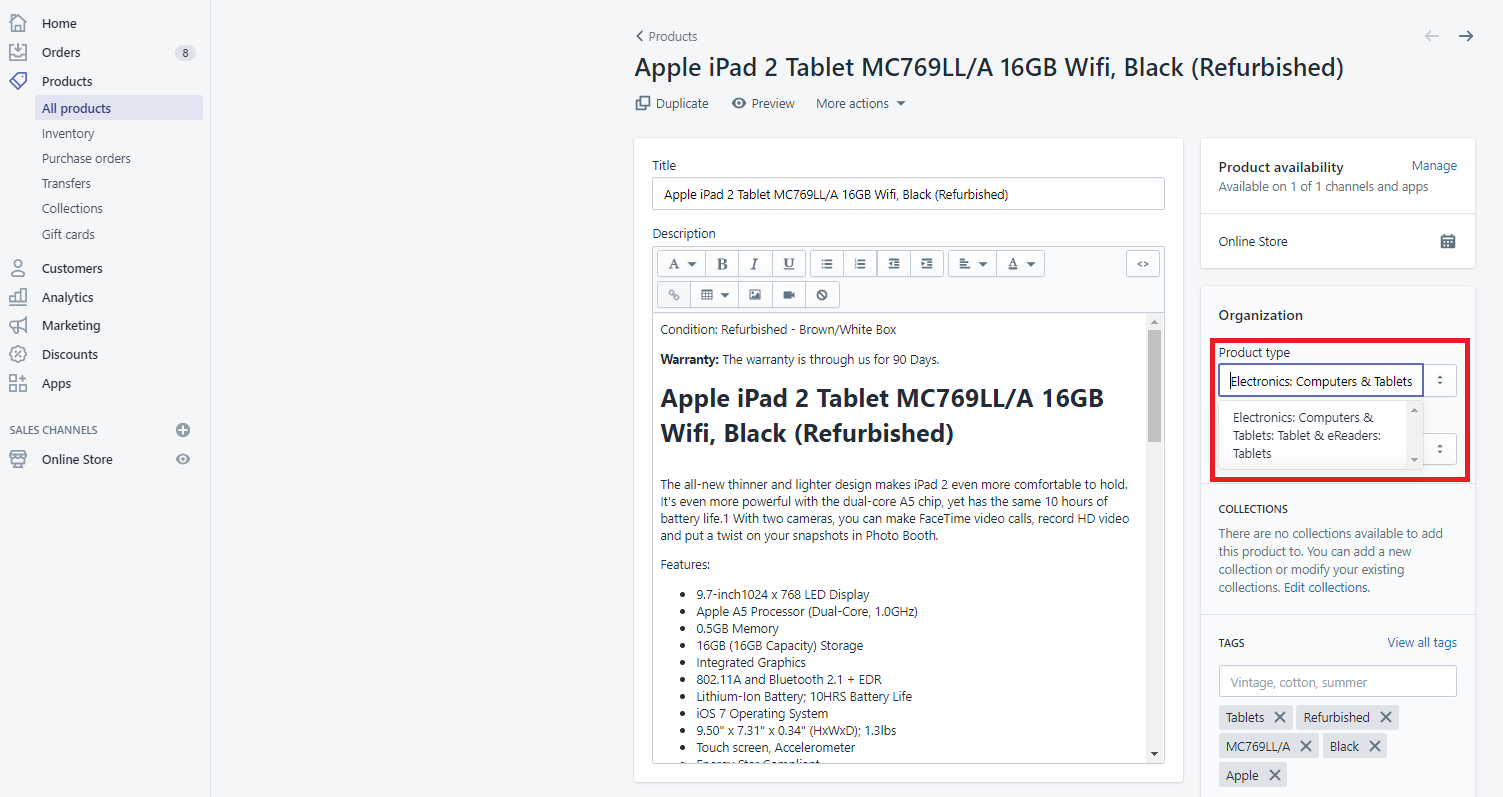
Comments
0 comments
Please sign in to leave a comment.