Channel fees are the fees associated with using each channel. Occasionally, the fees will change, and you will need to change the fee in Quipt in order to continue seeing an accurate estimate of the fees to be deducted.
Changing Channel Fees
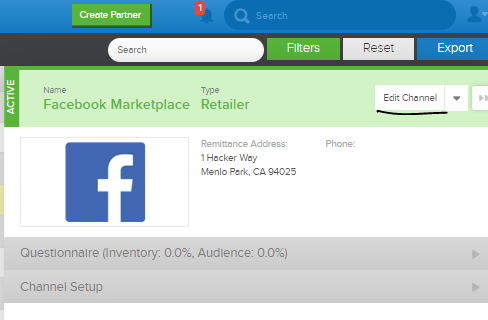
To change channel fees, you will need to go to the Partner Settings page, and find the channel that you want to update. Once you have found the channel, click the 'Edit Channel' button.
You will then click the 'Edit' button next to the Settings tab.
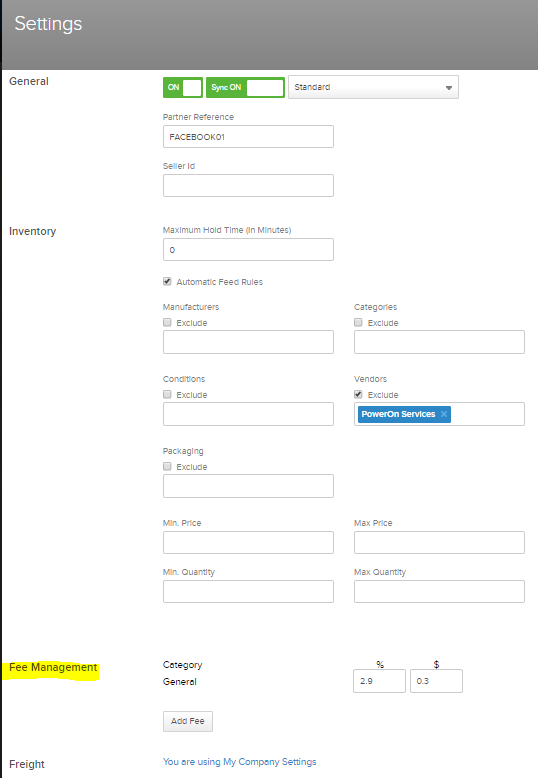
The Fee Management section is where you will find all the fees associated with that channel. Depending on how the channel collects fees, you can set a general fee, or you can set up different fees based on the category items are in.
Changing General Fees
In the above picture, Facebook is set for a flat 2.9% + .30/per order fee. To change this fee, change the values.
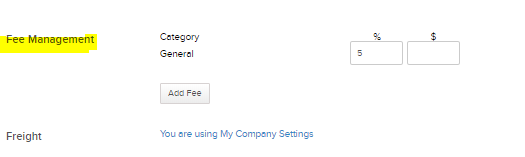
Facebook has now been set to have a flat 5% fee.
Changing Category Fees
To add a new fee for a specific category, simply click the 'Add Fee' button.
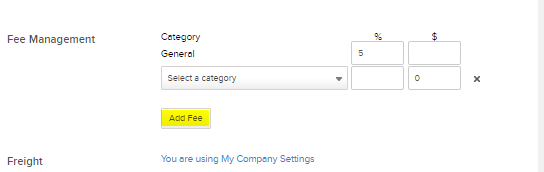
The 'Add Fee' button will add an additional row underneath the General Fee. You will need to select a category from the 'Select a Category' drop down. Once selected, you can then set either a flat fee or dollar amount that you want applied to the category. Items built in the selected categories will be assigned this fee, not the general fee.
*NOTE: Any category that you create an additional fee for will have its general fee overwritten and replaced by the category fee. For example, if Facebook has a general fee of 5%, and I create a category, Laptop Computers, with a fee of 9%, then any items built out in that category will be assigned a fee of 9%, and not 5%.
Comments
0 comments
Please sign in to leave a comment.