1. To create a Facebook page and shop for selling products, it's required you first have a personal account. Go to https://www.facebook.com/
2. If you already have a Facebook account, proceed with steps 3a-3c. If you do not have a Facebook account, proceed with steps 4a-4d.
3a. If you already have a Facebook account, Click Create a Page for a celebrity, band or business
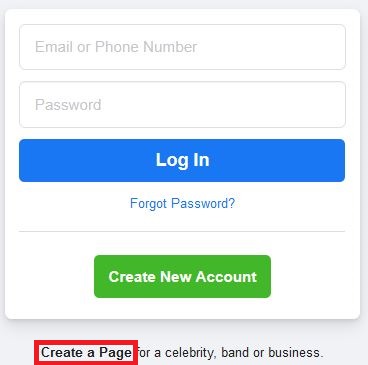
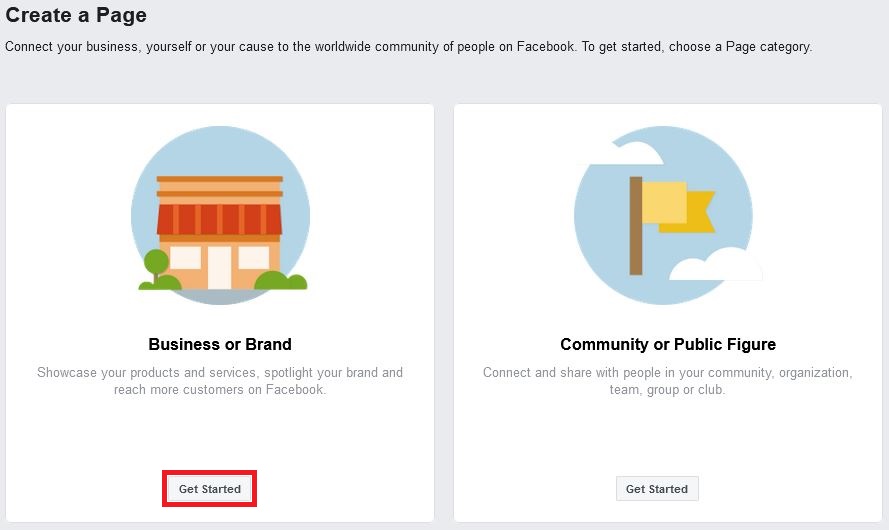
3b. On the next page, click Get Started under the option for Business or Brand
3c. This will redirect you again, to another login screen. Go ahead and enter your login details here, and click Log In. Proceed to step xxxx next

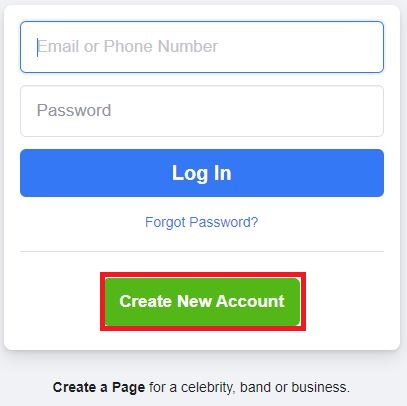
4a. If you do not have a Facebook account, click Create New Account
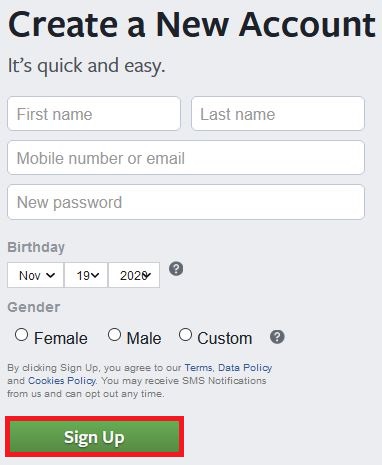
4b. On the next page enter the information for your primary company contact. You'll want to fill out Birthday and Gender correctly as well, as this person will be the legal contact between your company and Facebook.
4c. Click Sign Up
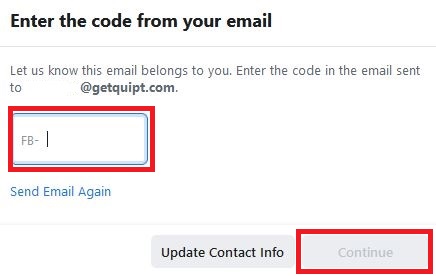
4d. A code will be sent to your email or mobile number. Enter retrieve and enter this code, and click Continue
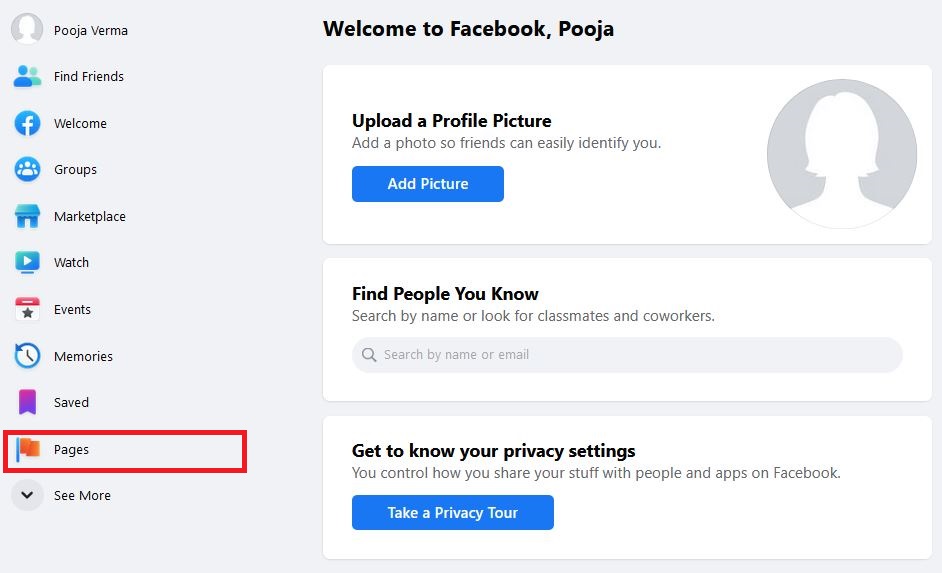
5. This will take you to your Facebook homepage. On the Left side, click Pages
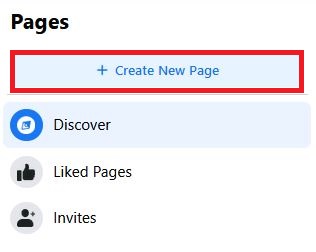
6. Here click + Create New Page
7. Fill out your business information under the Page Information section
a. input your company name under Page name
b. input the categories of products you sell under Category. You can input up to 3 categories.
c. offer a brief description of your business under Description
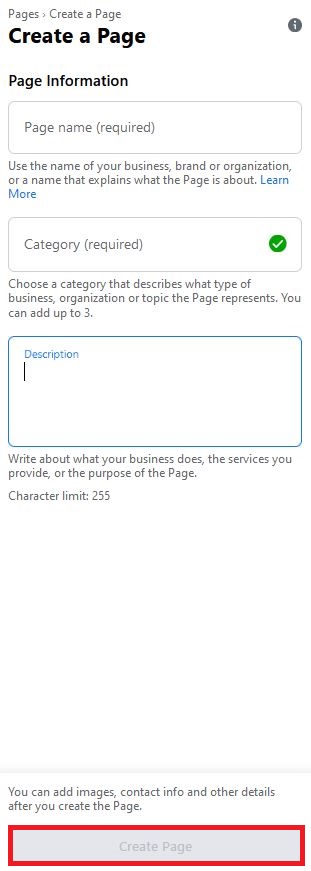
8. Click Create Page once everything is filled out
9. Next you'll be taken to the Manage Page overview
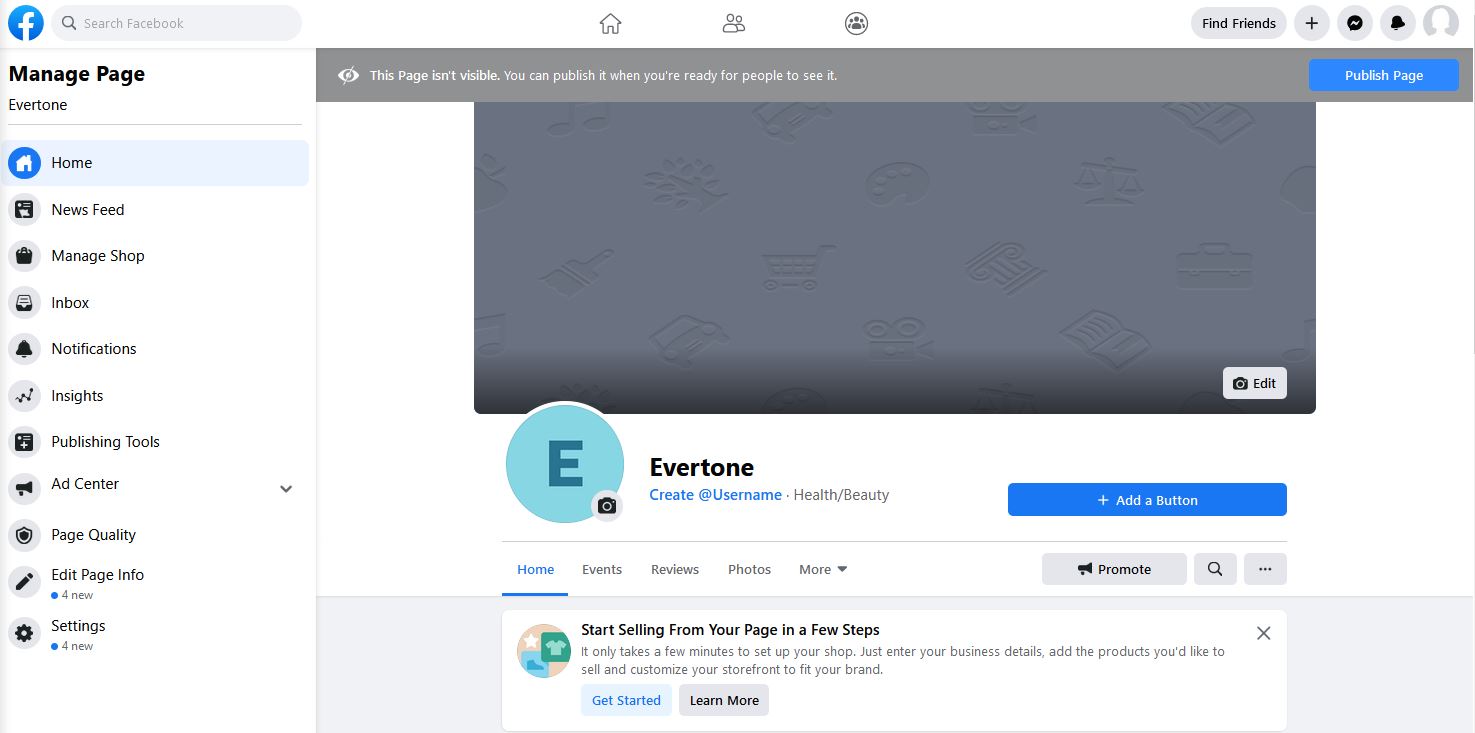
Click on Get Started under Start Selling From Your Page in a Few Steps

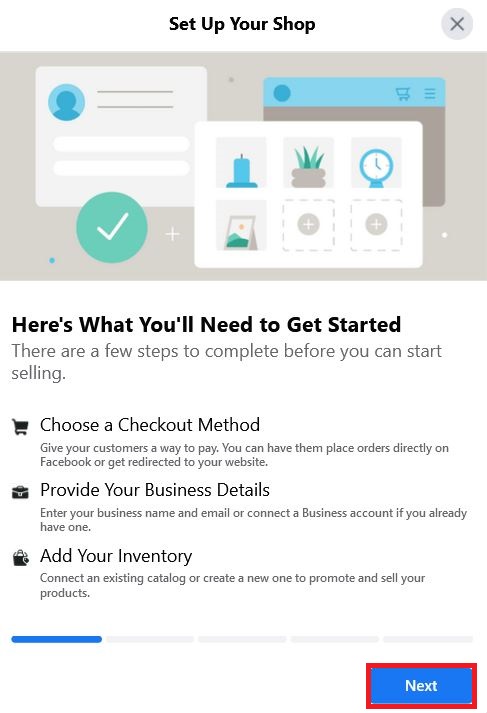
10. Here you'll start setting up your shop. Click Next
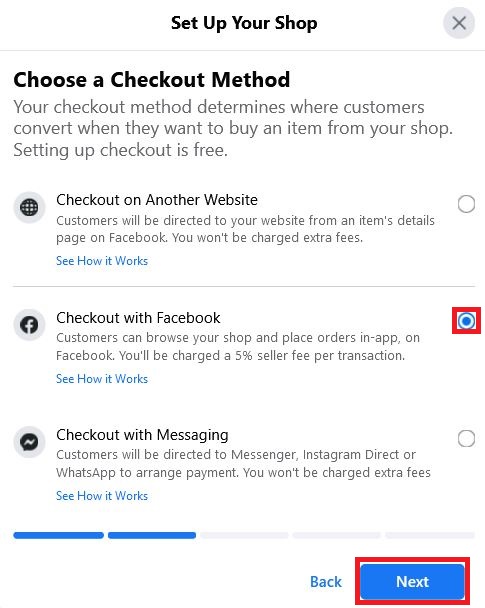
11. Choose the checkout method to be used by your customers. Unless you prefer using your own site for checkout, select Checkout with Facebook and click Next
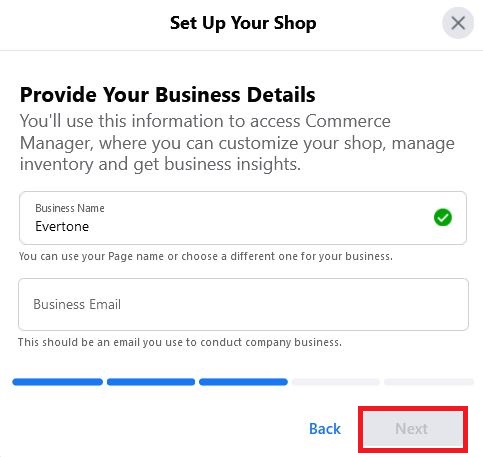
12. Double-check your Business Name is correct, and input your Business Email. Click Next
13. Your Facebook business page is now created. You can further customize it how you wish. However, to get started adding products, next see article Facebook Onboarding and Sync Guide to connect the account Quipt
Comments
0 comments
Please sign in to leave a comment.