1. Use this referral link to create your store.
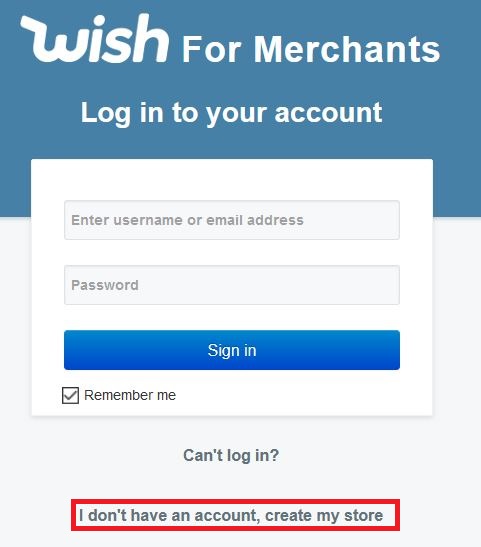
2. Click I don't have an account, create my store
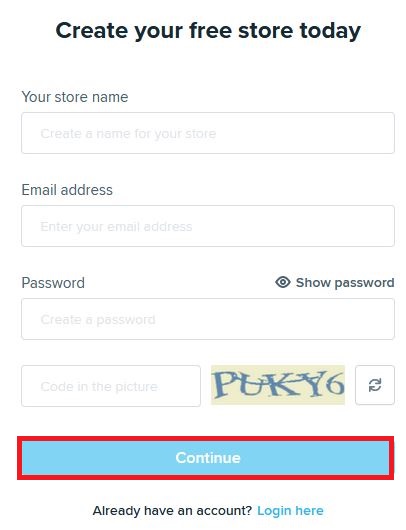
3. Fill out the page and click Continue
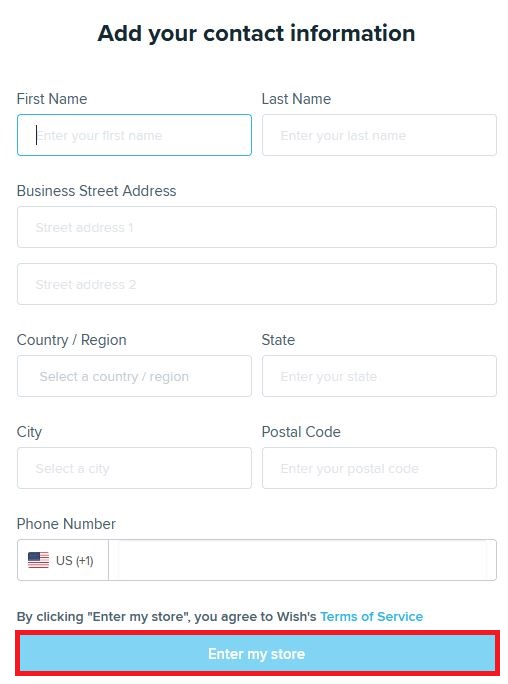
4. Enter your company contact information, and click Enter my Store
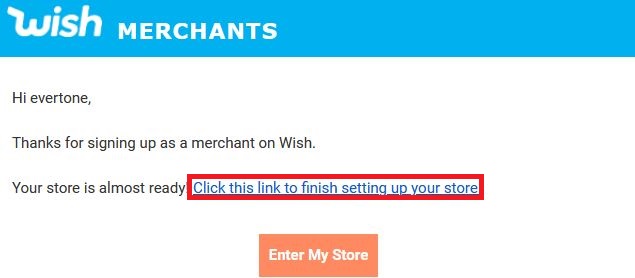
5. Wish will send you an email link asking you to "Click this link to finish setting up your store"
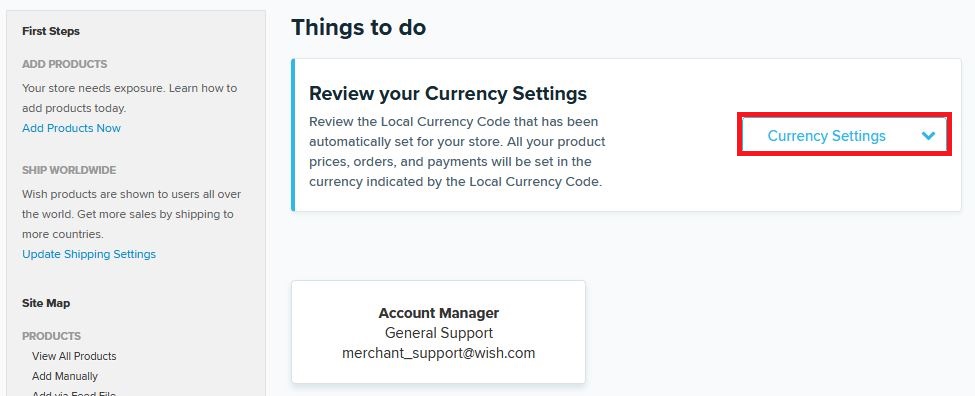
6. After clicking this link from your email, you'll be taken to your Wish for Merchants setup page. As a first step click on Currency Settings
7a. This will take you to the Login & Security Screen. Go ahead and login.
7b. Here you're prompted to enable Two Factor Authentication in order to receive payments from Wish. Go ahead and click Turn on >
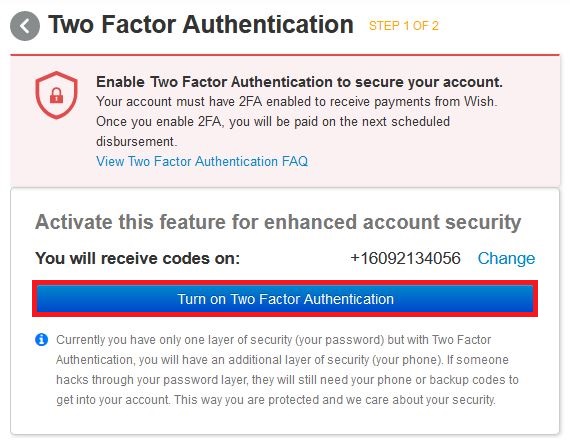
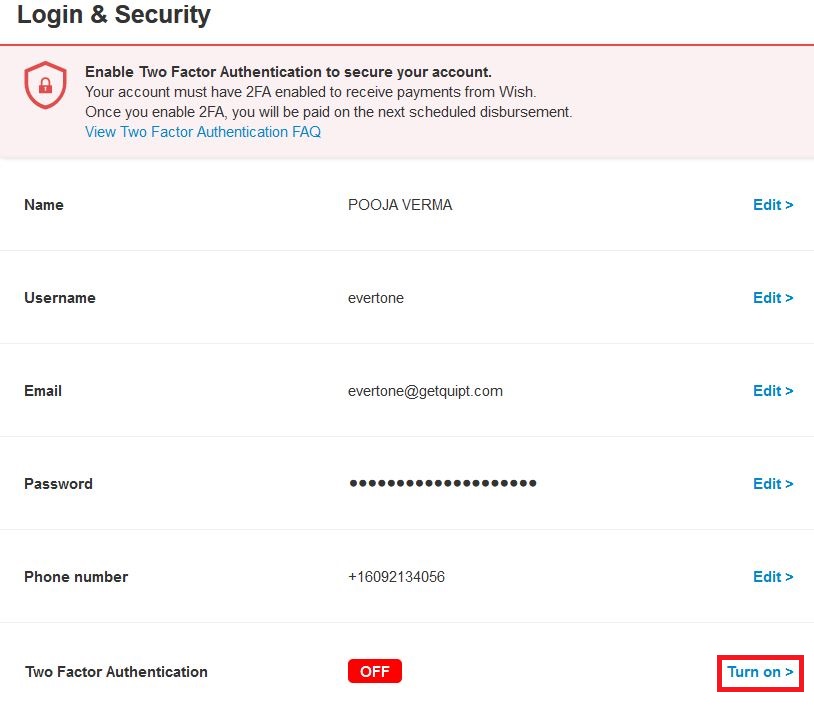
8. On the next screen, under Two Factor Authentication, click Turn on to confirm
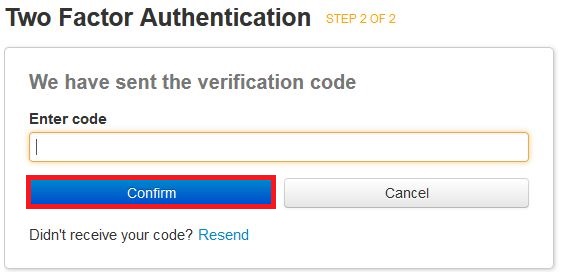
9. Fill in the verification code you receive to your phone number, and click Confirm
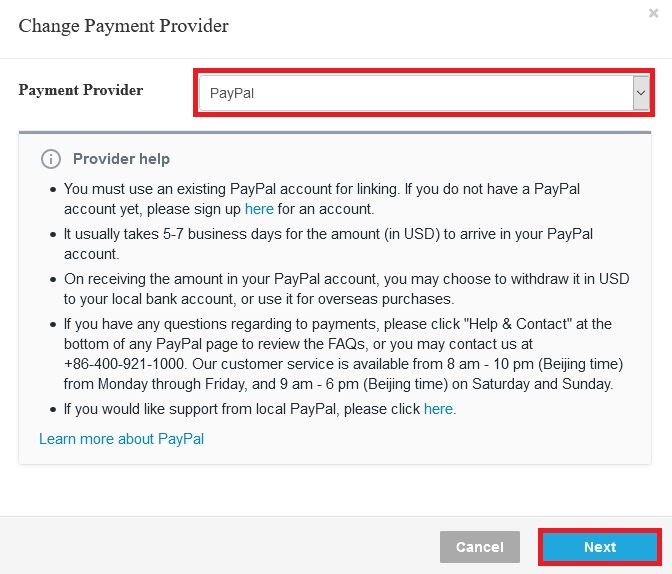
10. Next there will be a popup prompting you to Change Payment Provider. There are several choices in the dropdown, but if you're in the United States, you must choose PayPal. Click Next
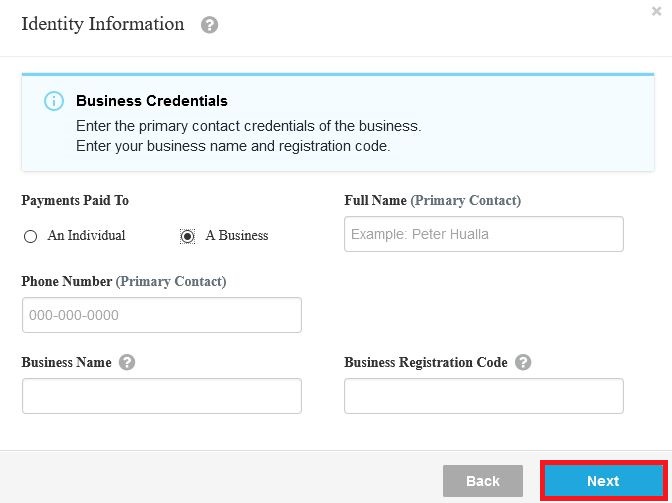
11. The next window asks you to provide Identity Information. Under Payments Paid To select A Business. Fill in the remaining fields and click Next
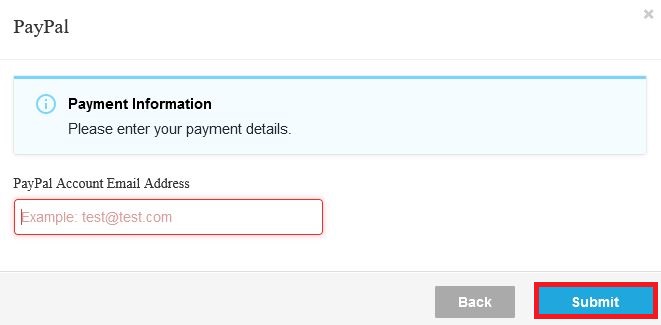
12. Lastly, you're prompted to enter your PayPal email at which you'd like to receive Payments from Wish. Fill this out, and click Submit
13. With this, your Wish store is now initially setup and you're ready start selling. For the next steps on linking the Wish store to Quipt, see Wish Onboarding and Sync Guide article
Comments
0 comments
Please sign in to leave a comment.