Each channel you sell on has the option for you adjust the expected payout amount reflected on your channel specific invoices. By default, this amount provides your expected payment after channel commissions have been deducted.
However, if you wanted to change this to reflect the gross amount instead, you can do so as follows:
*Please keep in mind that gross amount is not expected to match with payment reconciliation
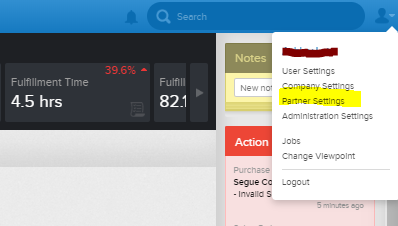
- Navigate to the Partners page in Quipt. From your Dashboard, look to the upper right hand corner of the app, where you will see a small avatar of a person. Click the drop-down arrow next to the person, and find the line that says Partner Settings. Click this button to open the Partners page.
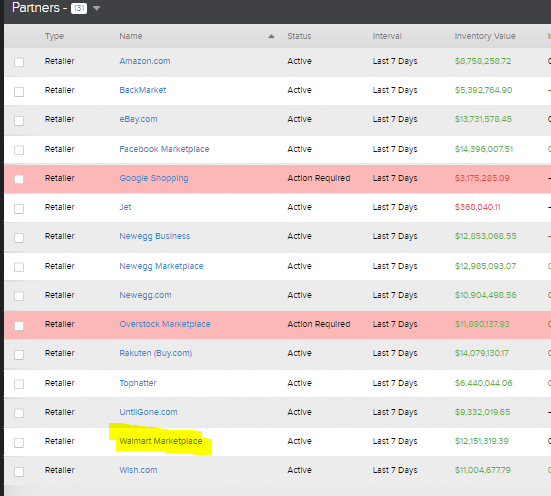
- From the Partners page, click on the channel you would like to update invoices for. e.g. Walmart.
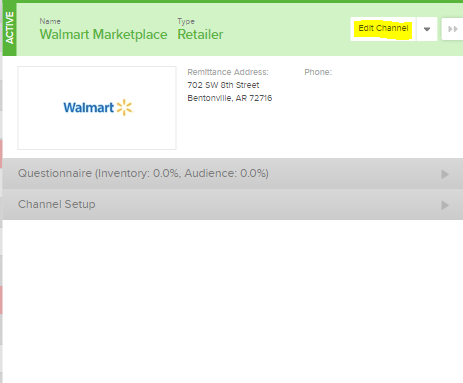
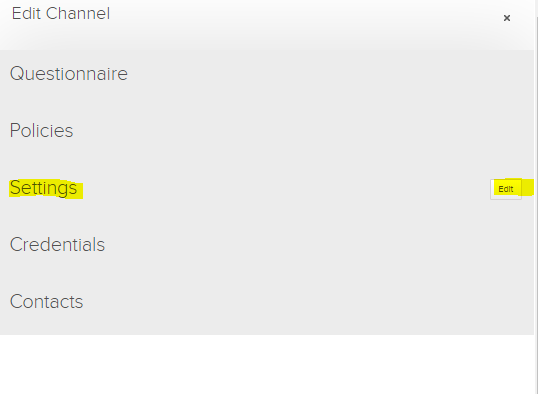
- Once the channel modal is open, find and select the Edit Channel button, located in the upper right-hand corner. Once the Edit screen is open and you are able to see all options, find and select the Edit button next to the 'Settings' option.
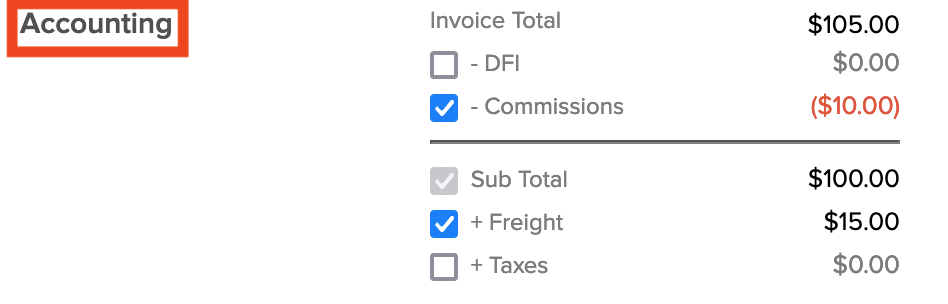
- When the Settings tab opens up, you will see a large amount of items which you can change. Scroll down until you reach the section labelled Accounting. Default as pictured provides your expected payment after channel commissions.
-
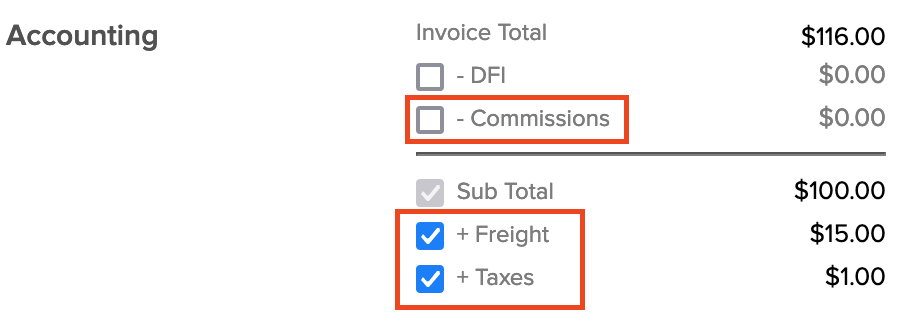
For your invoices to reflect gross amount, uncheck the box for Commissions, and check the boxes for both Freight and Taxes (or, if you don't sync taxes, you can leave this unchecked and simply checkmark Freight)
 6. Lastly, before exiting the page make sure to click Save
Comments
0 comments
Please sign in to leave a comment.