Each channel you will sell on collects commission fees, and they are typically (but not always) broken down by the category that the items you sell fall into. These fees are typically laid out in the agreement you sign when you become a seller, but they are also periodically updated by the channel.
Quipt has the functionality to simultaneously keep track of these values and calculate the expected payment based off the channel fees and said commissions. When accurate commissions are inputted in Quipt, using the accounting module becomes much easier; reconciling payments no longer requires manually calculating expected fees and comparing your non-invoiced detail to the payment detail of each channel.
With that being said, it is important to update the commissions when they are no longer accurate, or to add commissions when you sell items in new categories.
To update (or add a new category commission):
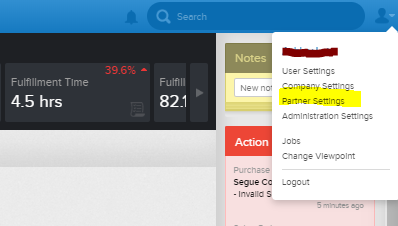
- First navigate to the 'Partners' page in Quipt. From your Dashboard, look to the upper right hand corner of the app, where you will see a small avatar of a person. Click the drop-down arrow next to the person, and find the line that says 'Partner Settings'. Click this button to open the Partners page.
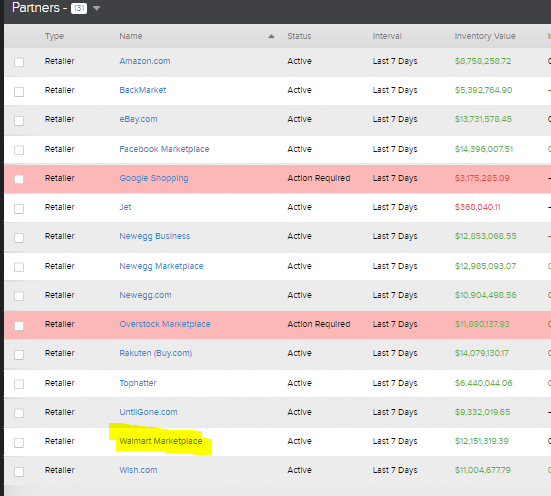
- From the Partners page, locate the channel you would like to update commissions for. For example, we will update commissions for Walmart. Click the line item for the channel to open the channel modal.
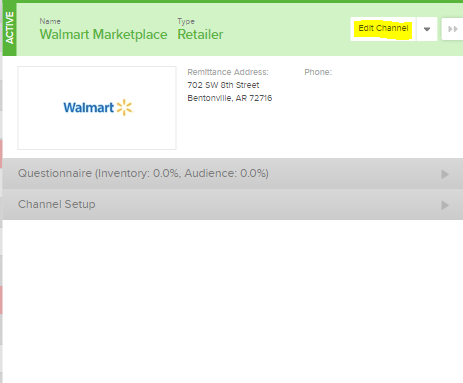
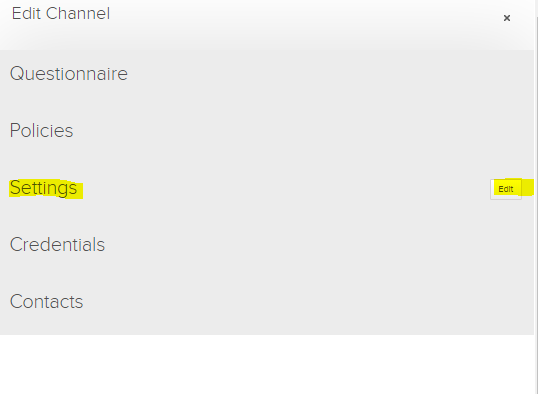
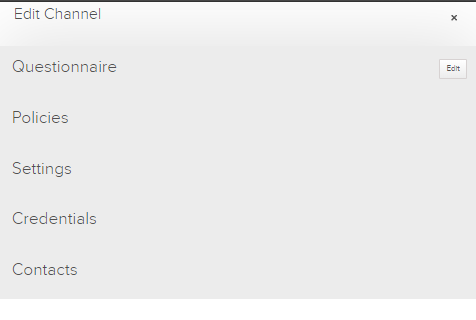
- Once the channel modal is open, find and select the 'Edit Channel' button, located in the upper right-hand corner. Once the 'Edit' screen is open and you are able to see all options, find and select the 'Edit' button next to the 'Settings' option.
- When the Settings tab opens up, you will see a large amount of items which you can change. Scroll down until you reach the section labelled 'Fee Management'.
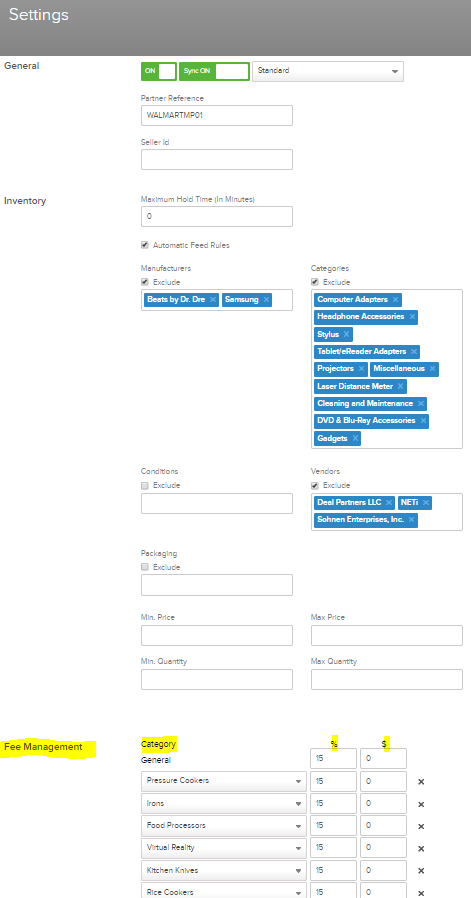
The Fee Management section contains information for each category and the fee corresponding to that category. This is where you will input/edit the information for each category fee. If you already have categories and their fees listed, you can edit the information by finding the category, and then editing either the first column or the second column, or both. The first column contains the percentage that category commissions at, and the second column contains the flat dollar rate at which the category commissions at. For example, 'Toasters' commissions at 15%, and 0$, but we could change it to commission at a 0% rate, and instead, a 15$ fee. This means that instead of taking 15% of the sale, the channel would be taking 15$ of the sale.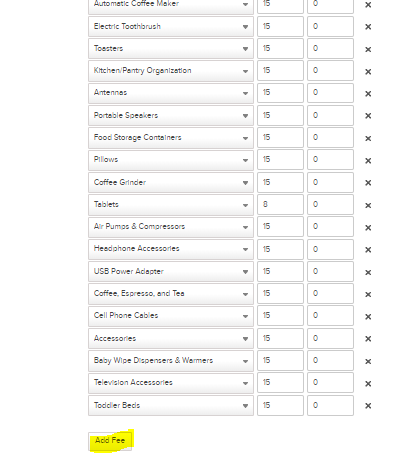
To add a new category, click the 'Add Fee' button at the bottom of the list of fees. This will add a new line item; you will need to search for the category you want to add by typing in the category name and then selecting it once it comes up. Then input the commission amount.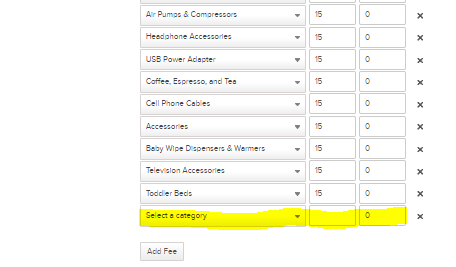
- Once you have finished entering new commissions or editing the commissions, you need to scroll to the bottom of the page and hit 'Save' to make sure your changes are saved.
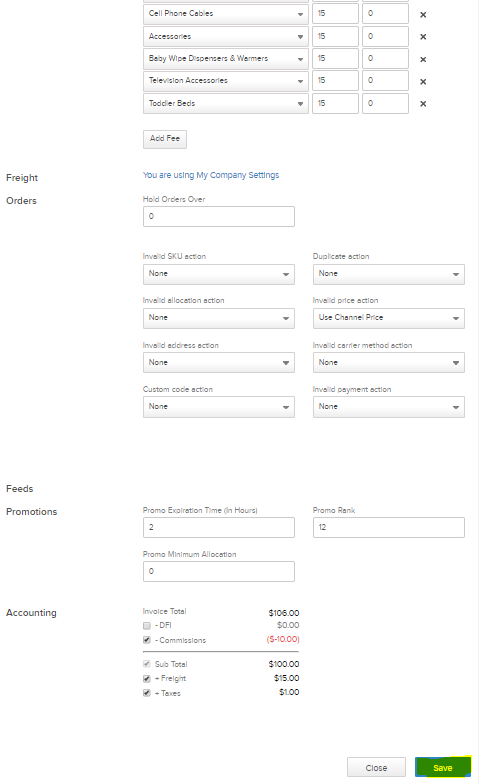
- After you hit 'Save', the section will collapse and you will be taken back to the main screen. Click the 'X' located in the upper right-hand corner of the screen to be taken back to the main partners page.
You can follow this procedure for any of your remaining channels, in order to change, add, or update new commissions.
Comments
0 comments
Please sign in to leave a comment.