Use top right dropdown
Select Administration Settings

Click on Other > select and click Catalog in the dropdown

This takes you to our catalog manager
Click on ‘Filters’

Filter by SubStatuses > Duplicate Probable > Click Search

Shows you list of Quipt items with probable duplicates in the catalog
Click on an item in the list to open the catalog drawer
Close the dropdown for Content and open the dropdown for Duplicates

Shows a list of items which are probable duplicates, and 3 action buttons: Compare, Remove, and Not a Duplicate

Compare - Compares the item to the catalog item

Remove - Removes the item from the catalog search, if you identify it as a duplicate

Not a Duplicate - Removes the duplicate flag from the item

First click Compare

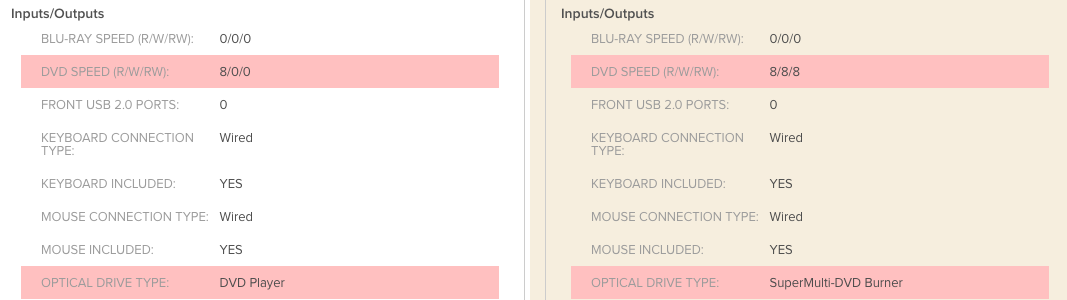
Shows a side by side, with the parent catalog product on the right, and the product you clicked compare for on the left

Scroll down to and check for any highlighted red attributes. Highlighted red attributes are those identified as different from each other
If an attribute is highlighted red, check if it is majorly different (e.g. different color or storage size) or minimally different (e.g. Color is ‘Gray’ instead of ‘Grey’)
If majorly different, the item IS NOT a duplicate

If minimally different the item IS a duplicate
Click the x button at top right to exit the comparison view

If the item was determined majorly different, click the Not a Duplicate button. Only do this if the item IS NOT a duplicate
If the item was determined minimally different, click the Remove button. Only do this if the item IS a duplicate
Once you’ve clicked either Remove or Not a Duplicate, wait a moment, as the line item in the Duplicates dropdown will be removed from the list.
Repeat the process and click Compare on the next item.
Continue until all items are removed from the list view in Duplicates dropdown
Once the duplicate dropdown list is clear, move on to the next catalog item, and continue repeating the process
Comments
0 comments
Please sign in to leave a comment.