Navigating to the Requests Page
To create a service request, you will first need to navigate to the 'Requests' tab on the left-hand panel in Quipt.
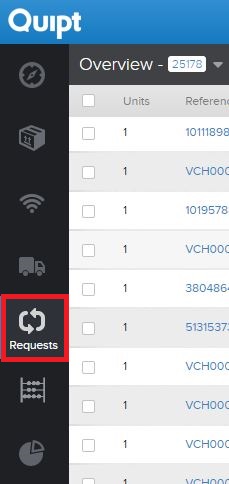
In this tabbed section, you will see all orders with and their service requests. Each column shows general details and to manipulate the service request, click on the order number.
Creating a New Service Request
Once you are on the 'Requests' page, you can create a new service request by clicking the 'Create Service Request' button, located in the upper right hand corner of the screen.

Once the 'Create Service Request' button has been clicked, you will see the following screen:
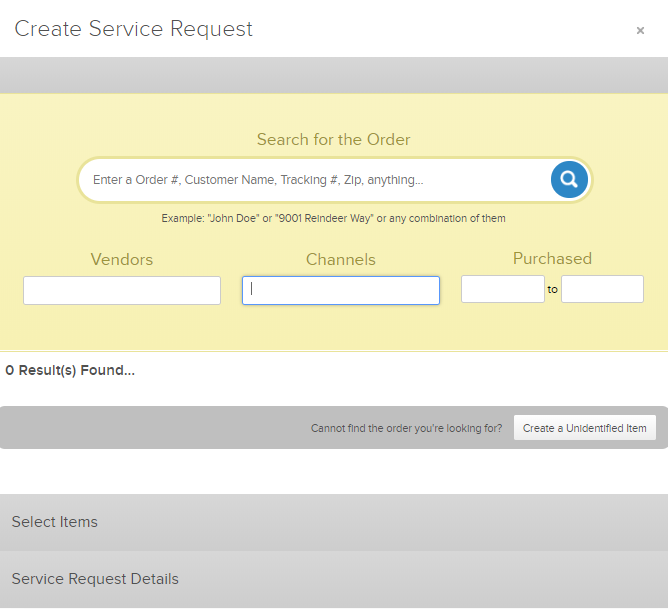
*From this screen, you need to search for the order you want to create the service request for. There are various ways to search for the order - including vendor, channel, or purchase date. You can also use the search window to search for a customer name, order number, tracking number, etc. If you cannot find the order information, you can always click the 'Create a Unidentified Item' button to continue with the service request.
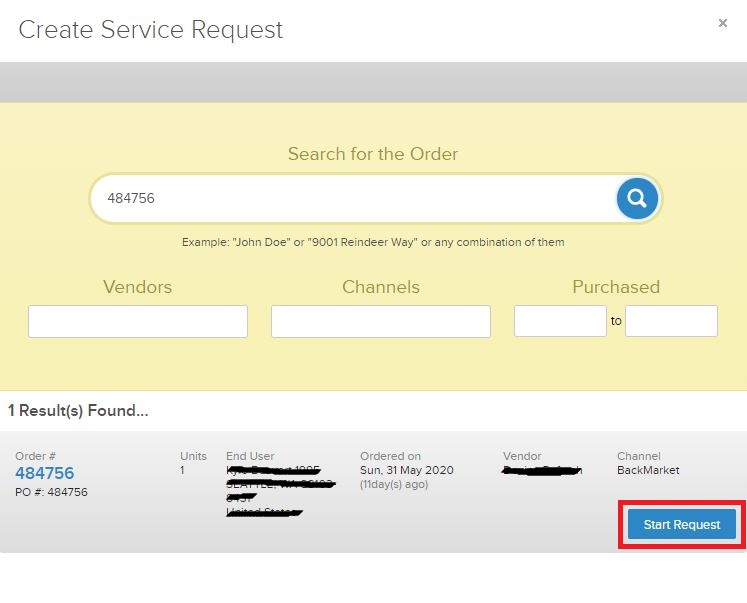
Once you have located the order you want to create a service request for, you can click the 'Start Request' button to continue with the service request.
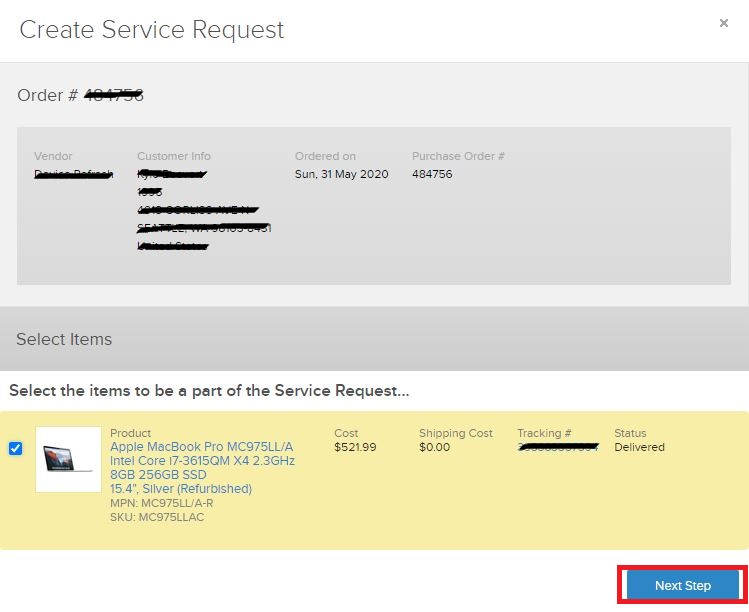
Once you have clicked the 'Start Request' button, you will be taken to a screen that looks like the one above. The top portion will provide all of the information about the order, such as order number, customer information, vendor, order date, and purchase order number. The middle section will contain all information about the items in the order. This is where you will select the item(s) that are pertinent to the service request. Once selected, you will hit the 'Next Step' button and be taken to the next portion of the service request.
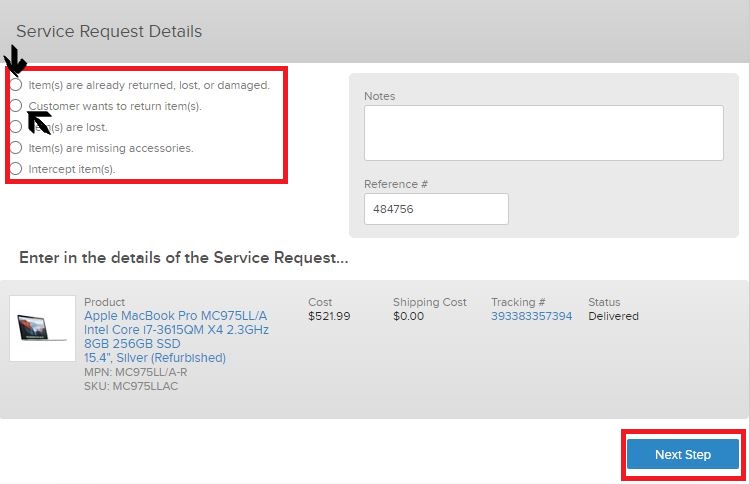
When beginning the Service Request Details, it is important to understand the functions of each option available. For all current service requests will, you can use the first and second option.
-'Item(s) are already returned, lost, or damaged.' option will immediately close the request after it is created and refund the customer. You will be able to enter the tracking information and notes like all other Service Requests.
-'Customer wants to return item(s).' option will create an open service request which can be closed at a later time when the item(s) are returned.
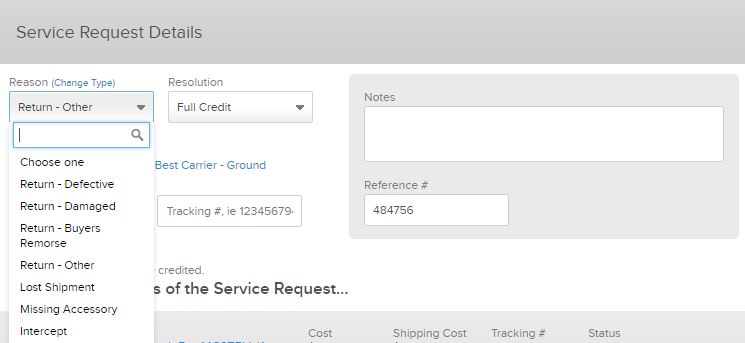
Next, you will select a reason for the service request- try to be as accurate as possible when selecting the reason. There is also a 'Notes' section, to the right of the 'Resolution' drop-down box, which will allow you to leave notes for the order and any pertinent information that is relating to the order. This is where you might leave specifics relating to the conversation with the customer and the situation of the request.
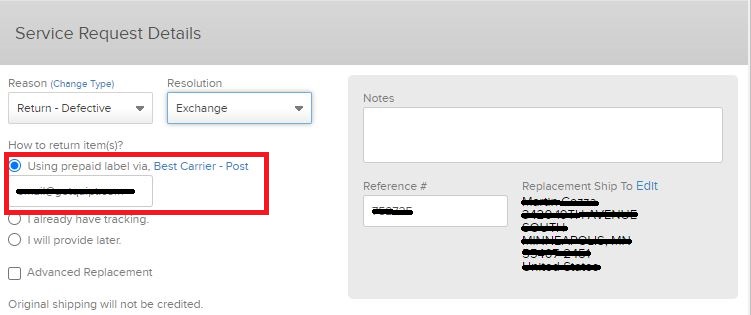
Once the reason is selected, select how you would like the item to be returned. Using a prepaid shipping label will generate a label and tracking number in Quipt. If the channel, you, or the customer has already provided tracking for this return, you can manually enter the tracking number by selecting 'I already have tracking' or 'I will provide later' options. If we are not providing a shipping label, please select 'I already have tracking' or 'I will provide later' options.
Selecting the resolution is crucial to ensure the customer is happy with the results of this service request. Quipt supports replacements and a refund.
*If you are selecting replacement, ensure there is sufficient inventory to fulfill the replacement order that will be created. 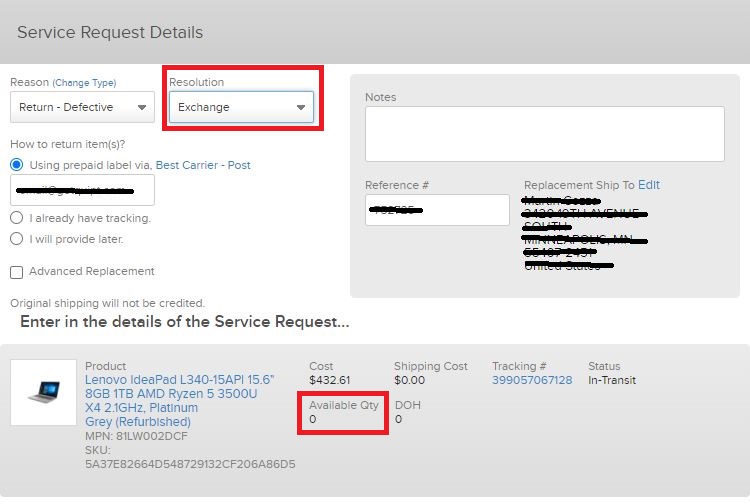
If you are issuing a prepaid shipping label, the box below will require an email address to send the attachment. The user will always receive a copy of the automated email Quipt sends. It is recommended that the user enters the "sent from" email address from the customer service inquiry. You can also gather the direct email address the customer would like to label to be sent and enter it here.
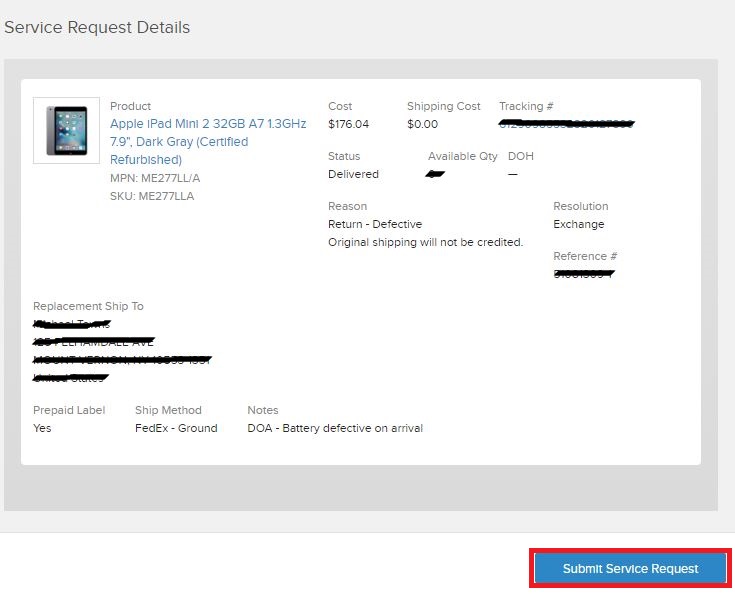
Once you have finished your notes on the order and have selected the options necessary for your service request, select 'Next Step' on the bottom of the screen. This will take you to the review section. If all details are correct, click 'Submit Service Request' to complete this Service Request.
Comments
0 comments
Please sign in to leave a comment.